
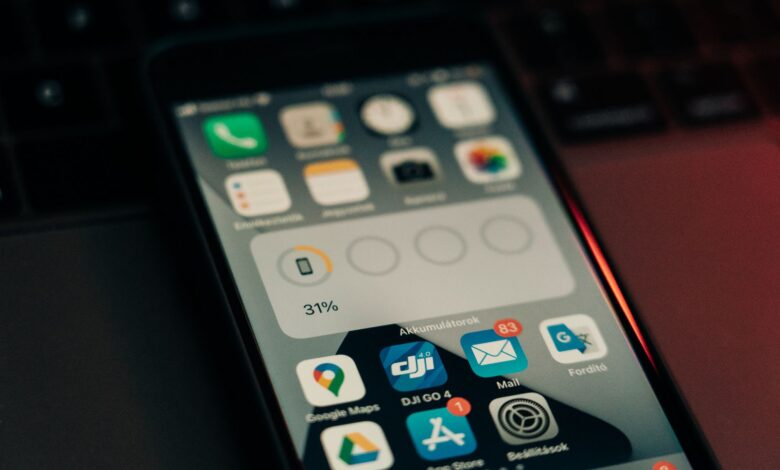
Last week, your mobile phone worked perfectly, but now you need to plug it into the charger every evening. The hardest thing about this situation is figuring out if it is due to a single application running (therefore using up battery power), due to a poor data signal, or due to an old battery (losing power more quickly). When your phone is rapidly running out of battery, it is a waste of time to guess what the problem may be, especially when both Android and iPhone already have a log of what has drained the battery.
The following ‘How To’ Tutorial walks you through reading this log on your Pixel device, Samsung Galaxy device and iPhone. It also covers how Restricting bound (data) to just the apps that deserve it, and how to separate apps that are draining the battery quickly from weak-signal or age-related batteries. The menu paths listed have been verified with Apple, Google and Samsung assist web pages as of 09-29-2026 and each path lists the version of the software it pertains to. If your screen does not look quite the same, you will need to look for the names of the items instead of searching for an exact graphical match.
What Your Battery Usage Screen Actually Measures
Although the battery report does not provide you with an actual amount or percentage of battery that each application is using, it breaks down all of the battery usage across applications and the operating system. Thus, each value is a representation of a percentage of the battery usage. Google points out that due to rounding issues, the percentage values presented on the report may not equal exactly 100%. Therefore, just because an application shows a value of 30% does not mean that the application has done anything wrong; the value simply reflects that it is the application that you used the most throughout the time.
Screen-on versus background use
On the battery report, the most useful breakdown of the report is the “background app” section. In other words, this section gives you an overall view of how much power an application used while the application was in the foreground compared to how much power it used while it ran in the background. On the iPhone, the battery usage for an app is also separated out per application. Apple’s iPhone User Guide lists four labels you may see under an app:
- On screen means the app was open and visible. A long on-screen time explains higher usage.
- Background covers work done while you weren’t looking at the app. Apple’s examples are directions, playing music, syncing photos and fetching mail.
- Cellular coverage means the app was used while the signal was weak, which costs more battery.
- Notifications means the app woke your phone to check for new information.
In addition, Apple’s battery troubleshooting information uses different terms for the same concepts as noted above: “Background Activity”, “No Mobile Coverage/Low Signal”, “Notifications”, and “Connected to Charger”. “Connected to Charger” means that the application only ran while the iPhone was plugged into the charger and therefore did not use any battery power. If the iPhone uses one term and this guide uses the other term, both terms refer to the same concept.
On the Samsung Galaxy device, these battery usage statistics are broken out as “Screen On Time” and “Screen Off Time” in the battery usage. The Pixel phone has a battery usage page that allows you to “View by Apps” or “View by Systems”, allowing you to then view the functions of the phone as opposed to the applications.
“Background” does not mean “Background App Refresh”
In the case of most misunderstandings with the iPhone the problem lies in the Apple Community posting by an iPhone 15 Plus user who cited a long period (6:30 hrs) of background activity for a WhatsApp app that had the background app refresh feature disabled. Apple’s internal definition elaborate on why this is possible; as background usage includes using your location, fetching your email and playing audio, and background app refresh does not prevent other forms of usage in the background from running. If you turn off only this feature, it will not stop other types of background usage from taking place. The same confusion is evident in an Android Central forum post by a user who noted they were still using the TikTok app for over one hour after disabling all background activity on their Samsung device.
The biggest number is not always the problem
Newer phones flag unusual drain themselves, and that flag matters more than rank. From iOS 26, the iPhone’s Daily Usage chart shows a day in orange when you’ve used more battery than usual, and it highlights the top three apps or activities that may explain it. 9to5Mac gave a clear example: the writer’s Weather app was flagged at 4% because it had barely been used, while Instagram at 6% wasn’t flagged because that much use explained it. On a Pixel, Google says you’ll get a notification if an app causes abnormal battery drain.
When reviewing your usage on the top row, consider the following: What is the percentage of total screen usage versus background usage? Did the phone “flag” usage? Also, is the item an application or a system item (like Signal)? A high amount of percentage for an application that you have been using on-screen for several hours is to be expected. However, a significant percentage of background usage for an application that you have hardly opened is something that should be investigated further.
What the screen can’t tell you
Regarding usage screens, you can see how much power (charge) you are using, but the screen does not provide any information about the power or charge your battery has left. Google notes that the battery fuel gauge has a separate capacity estimate and decreases in capacity as the battery ages. Therefore, a battery that is old will not last as long itself, even if the application list of that battery appears normal. This situation is addressed in the “Overnight Drain” section below.
How to See What Is Using Your Battery on Android
If you are using an Android device, you will find a record of this information in the Settings section of your device under Battery. However, Google and Samsung name the screens differently.
On a Google Pixel (Android 14 and later)
Google’s Pixel help page gives this path. It is written for Android 14 and up, so check the labels if you’re on Android 17.
- Open the Settings app and tap Battery.
- Tap Battery usage. The chart shows your battery level since the last full charge.
- Tap View by apps to see which apps used the most, or View by systems to see phone functions.
- Tap any app to review how it’s allowed to use battery. Google recommends keeping battery optimisation on for all apps.
In addition to providing a way to track battery drain, the new Pixel devices also have a way to check the state of your battery through the new Battery diagnostics feature found at Settings>Battery > Battery diagnostics > Battery draining too quickly per Google’s battery drain guide for Pixel 6 and above. On Pixel 10 and later, the top of the Battery usage page can show an AI-generated summary that points out the heaviest apps and compares your recent use with your average.
On a Samsung Galaxy (One UI 7 and later)
Samsung provides instructions for finding the settings to check battery usage, as shown below. Samsung’s battery guide states that due to variations between carriers and phone models, their instructions should be considered a reference guide for devices with One UI 8 and 8.5.
- Open Settings and tap Battery.
- Tap View details.
- Check Screen on time and Screen off time, then scroll down to the per-app list.
If you follow this link, you will be directed to the information on how to check for quick draining problems on your device via the examples provided by Samsung on its website. You should also expect that there may be differences in the screens based on the manufacturer of your device, your carrier, and what version of Android you are using.
On Tecno, Infinix, Xiaomi and other brands
Both Samsung and Google have overlaid their own additional features onto their versions of Android, which means you won’t be able to compare the screen views you would have on either company’s devices with the examples in this guide. Start at Settings and look at the Battery (or Battery & performance) and search for a list of the apps that are using the most battery power, along with which apps you are using in the background and in the foreground. Don’t be surprised if the labels you see are not the same as you would see on a Samsung or Google device.
Before you touch anything, note this down
List the name of the application and if that application was used primarily on the display, or as a support application. Also include whether or not the phone flagged that application as problematic. Additionally, check if that application has started draining your battery after an update in the last couple of days – this is normal for Google devices after installing a new version of Android (or other upgrades) as they will be optimising the phone for a few more days until it reaches maximum performance. After doing either a factory reset or restoring to a previous state, it may take several weeks for the phone to learn how best to manage its battery. Be patient; do not limit the use of any applications until after you have given them a few days to settle down. Google says a little extra drain after a software update is normal while the phone finishes optimising.
How to Check Battery Usage by App on iPhone
Apple updated the iPhone battery screen when it released iOS 26. Apple states that you must be using iOS 26 or higher to view the Daily Usage chart. If you are currently using an earlier version, the Daily Usage chart will look slightly different but still provide similar information about how much an app uses your battery (the “per app” details).
Reading the Daily Usage chart (iOS 26 and iOS 27)
The following information was derived from Apple’s iPhone User Guide.
- Open the Settings app and tap Battery. The chart compares today with the last seven days. A blue bar means similar or lower usage, and an orange bar means higher than usual.
- Tap View All Battery Usage. Apple says this view covers the last eight days.
- Tap the day you want to check, especially an orange one or the morning after a bad night.
- Scroll down to App and System Activity and tap an app to see its usage for each day, along with its On screen, Background, Cellular coverage or Notifications detail.
Check for Insights first
If you’re unsure about which app(s) could be affecting your battery, it’s best to check the Daily Usage section first. Starting with iOS 18, Apple introduced a feature called “Insights” that displays common causes of battery drain. Apple shows Insights such as “Ongoing iOS Update” which means a recent iOS update is running in the background and will eventually stop draining battery power once it has completed; Apple recommends checking again after a few days once the update has finished. When new major versions of iOS are released (like iOS 27), the waiting period for verifying your battery usage may help avoid adjusting some settings unnecessarily.
Which label points where
In addition to providing app-specific information to help you minimize battery drain, the colored labels direct users to various ways to correct the situation. For instance, a huge on-screen figure is simply your personal usage and the solution lies in the Apple-recommended display settings on that same screen (for example auto-brightness and auto-lock). In most cases, you will find the solutions under Background and Notification settings in the app controls listed in the next section; Cellular coverage (or “No Mobile Coverage and Low Signal”) points away from the app and indicates issues with your carrier/network which would generally be addressed using the Overnight section.
How to Stop Apps From Draining Battery in the Background
Once you know what app is creating the problem and for what purpose, it’s easier to disable that one behaviour rather than disable the entire device. However, before you disable the offending behaviour, get rid of the habit that’s causing the problem.
Swiping apps closed doesn’t save battery
Apple says you should close an app only if it’s unresponsive. It explains that closing all your apps does not affect overall performance, because recently used apps only use power while they’re active or doing specific background tasks. Apple also notes that suspended apps aren’t taking up system resources. And if you quit an app from the app switcher, it may not be able to check for new content until you open it again. Closing WhatsApp to save battery can simply mean your messages arrive late.
Match the label to the setting
The table below explains the relationship between the battery screen, and the application that utilizes it. The links provided below will provide you with the resources for Apple, Google, Samsung, and all the other manufacturers that were referenced to complete the table.
| What the battery screen shows | Setting to change | What you may lose |
|---|---|---|
| iPhone: Background, from an app that refreshes feeds | Settings > General > Background App Refresh | Content is fresher only after you open the app |
| iPhone: Background, from an app tracking you | Settings > Privacy & Security > Location Services > app | Location features when the app is closed |
| iPhone: Background from Mail | Settings > Apps > Mail > Mail Accounts > Fetch New Data | New mail checked less often |
| iPhone: Notifications | Settings > Notifications > app | Fewer alerts from that app |
| Pixel: high background use | Battery usage > View by apps > app > background usage | Delayed updates or alerts from that app |
| Samsung: long screen-off time from one app | Settings > Battery > Background usage limits | The app may not run until you open it |
Use each line for the specific app that you have identified, and do not use these lines for all applications. Messaging applications and email applications require some form of background access in order to deliver on time.
iPhone controls
In the Settings Application, scroll down to General and click on Background App Refresh. Apple’s steps instruct you to disable Background App Refresh completely, or restrict Background App Refresh to Wi-Fi only, or Wi-Fi and Cellular Data. You can also disable Background App Refresh for an individual application from the list provided in the previous paragraph, which is the best option for an individual offender.
Location. To change the location settings for an app, navigate to Settings > Privacy & Security > Location Services > tap on the app name. Apple defines “Always” as allowing location access even when the app is in the background. If you choose the “Always” setting, the app can have access to your location service even when it is running in the background. In contrast, if you select the “While Using the App” option, the app can only access your location service while actively running or while one of its features is visible on the screen. Therefore, if you change a non-navigation app from “Always” to “While Using the App”, this will prevent that app from having access to your location service in the background and thus reduce the amount of background activity generated by the app.
Mail. To find the settings for an email account, navigate to Settings > Apps > Mail > Mail Accounts > Fetch New Data. Apple explains that the default setting, called “Automatically”, is only available to users while your phone is plugged into a power source and connected to Wi-Fi. In the event you chose a more frequent schedule for fetching data during the past, now is the time to review the information.
Notifications. If an app displays an app notification label, Apple suggests adjusting that app’s notifications so it wakes the device less often. The controls are under Settings > Notifications > the app.
Pixel controls
To view the battery usage of specific apps, go to Settings > Battery > Battery usage > View by apps, select the app in question and adjust its battery usage settings accordingly. Google recommends enabling battery optimisation for all apps, as disabling this feature allows an app to continue using battery life even when it is not actively used. Several Android Police writers indicated that restricting background sync activity for an app can help limit the amount of battery consumed by that particular app. Google warns that turning optimisation off lets an app run more while you aren’t using it, which can use more battery than needed. To do this, navigate to Settings > Apps > the app > Mobile data & Wi-Fi, and select Restrict Background Data.
If restricting access to an app does not resolve the problem, then, per Google’s order, you have to force stop the app and remove it from your device. Google also mentions that forcing some system apps or services to stop functioning will cause serious issues with your phone’s ability to function properly. Additionally, Google Play services can not be forced stopped or removed from your device.
Samsung controls
Access the Settings > Battery > Background usage limits page to access a list of background usage apps. Samsung’s options are:
- Sleeping apps don’t run in the background, but they may run again once you start using them.
- Deep sleeping apps never run in the background and only work when you open them.
- Never auto sleeping apps are excluded from sleep. Use this for apps you must always receive from.
When adding to the Deep sleeping list, consider the apps that you have chosen to put on it. Based on Samsung’s definition of deep sleeping, if you add WhatsApp, a banking app, or an alarm app to the Deep sleeping list, then it will not function or deliver notifications until you open the app. Therefore, deep sleeping would be appropriate for apps that you do not often use, but unpractical for apps that you rely on regularly.
Why Your Battery Drains Overnight (When It Isn’t an App)
There are occasions when a phone will still lose a great deal of battery charge at night even when everything appears to be fine. When this occurs, the problem usually lies outside the app list. It may be due to things such as network activity, software faults, or even the battery itself.
Weak signal makes the phone work harder
According to Android’s developer documentation, searching for a cellular network is one of the most power-consuming activities on mobile devices. Furthermore, as explained in the documentation, the radio uses a considerable amount of electrical energy when fully operational and a relatively small amount when in standby mode. Apple gives the same recommendation: Wi-Fi uses less power than mobile networks; both Wi-Fi and mobile networks use less power if there is a good signal; and if you know that you will not be receiving cellular coverage for an extended period of time, it might be a good idea to change to airplane mode.
There is a known issue in parts of Nigeria. The National Communications Commission (NCC) report from June 2026, created in conjunction with Ookla, identified 5.9% of Nigeria’s national tracking grid as high battery consumption zones between June 2025 and May 2026. Additionally, the report showed that 0.8% of the grid consists of areas where phones overheat while they are draining at the same time. The NCC states that this is due to the need for phones to continually amplify their signal to maintain communication with a distant cell tower, as well as the fact that the phones repeatedly attempt to reconnect to the cell tower. If your iPhone indicates that you’re in an area with cellular service or if your phone has one bar of signal and is located in an area with poor cellular coverage, the cause of the problem is likely the network provider rather than an application. Apple has stated that iPhones 12 and later have a feature called 5G Auto (Settings > Cellular > Cellular Data Options > Voice & Data), where iPhones switch from 5G to LTE when there’s no significant benefit to using 5G, thereby conserving battery power.
Updates and software bugs
After the software update, there will likely be an increase in battery usage for several days regardless of whether you are using a Pixel or non-Pixel device. If you are experiencing battery drain from your OS (Operating System) and have checked all settings related to your apps, then the issue is with the operating system and there is no way to resolve it through an app. In April of 2026, there was an idle drain issue with Google Pixels that impacted many users, and the company responded by acknowledging the issue on April 14, 2026. According to a report from Gadget Hacks, the drain continued despite having Airplane Mode turned on. XDA later reported that Google had resolved the problem with patches included in a July build for the Pixel 10 and Pixel 9 series, while they were scheduled to issue updated patches to fix this issue on Pixel 8a and Pixel 9a in the September quarterly update; however, some users continued to report the issue even after these patches were applied. The main takeaway is that this issue is not confined to just Google Pixels. If you have verified that your apps are clean of all stored data (Cache) and that there have been no recent updates on your Phone, see if the problem still exists when in in Airplane Mode. If it does, then update your Phone to fix the issue. Also, always check the Manufacturer Support Forums for advice before performing a Factory Reset.
An ageing battery
If these options do not work, the next thing you could check is the condition of your battery. Apple says iPhone 14 (or earlier) batteries are capable of maintaining at least 80% of their original capacity after 500 full charge cycles, whereas iPhone 15 devices are designed to do this after 1000 full charge cycles, under ideal conditions. Apple also notes that a battery at a low state-of-charge, along with extremely cold temperatures, can lead to unforeseen shutdowns more frequently. To check your current battery health percentage on an iPhone 15 or higher, go to Settings > Battery > Battery Health; for an iPhone 14 or lower, check your current battery health percentage under Battery Health and Charging. Google’s path is Settings > Battery > Battery Health, where a rating of ‘Reduced’ means your device has lost at least 20% capacity. Samsung points you to the Samsung Members app, then Support > Get Started > Battery Status. If you determine that your battery is defective and requires replacing, the only option to replace it will be through an authorised service centre; this is not a DIY repair.
Putting the checks in order
Below are the suggested checks divided into sections, with each section intended to eliminate the most cost-effective checks first. This is the order that manufacturers suggest, but no single manufacturer publishes a checklist that is completely universal to them all.
- Check the calendar. If the drain began within a few days of a software update, wait a few more days and check again.
- Read the battery screen. Classify the top row as on-screen use, background use or a system/signal item, and note whether the phone flagged it.
- Restrict one app. Apply the matching control from the table, then compare the same screen after a day or two.
- Compare a few nights. Leave the phone unplugged one night as normal, and another night with mobile data off and Wi-Fi on. WhatsApp and other apps will then only receive over Wi-Fi. If the loss shrinks a lot without mobile data, signal is the likely cause.
- Try Airplane Mode once, for diagnosis. You won’t receive calls or messages that night. If the drain continues even then, suspect a software fault and check for updates.
- Check battery health. If everything above is clean, the battery’s capacity is the next thing to look at.
What to Check First
The battery usage screen should be the first step when troubleshooting battery drain. Rather than take a wild guess at what is using all of your screen time, the battery usage screen gives you a much more definitive separation of your own screen time from background work and weak-signal drain. If you see a particular app showing heavy background usage but it is not justified with actual screen time, you should restrict that app only, instead of swiping everything closed. If the battery usage screen is clear, but your battery is still dying overnight, then start with checking the signal strength, then look into any possible software issues, and finally, check the overall health of the battery.
Frequently Asked Questions
Does closing apps from the recent apps screen help?
No. Apple says closing all your apps doesn’t affect overall performance, and it recommends closing an app only when it stops responding. Closed apps may also be unable to check for new content until you reopen them.
Should I switch on Airplane Mode every night?
This test is useful if you want to test a signal drain while trying to conserve battery, and Apple suggests running this test if you know you won’t have any cell coverage. When you run this test nightly, you will not receive calls and text messages until the test is turned off. If the issue is with your signal, leaving Wi-Fi on will help to prevent heavy draining.
Can I put WhatsApp in Deep sleeping or Restricted mode?
You can deep-sleep most messaging apps, but it is risky. Samsung states that you can only use your deep sleep messaging apps once you have opened them, and according to Google, it recommends keeping optimisation on rather than removing all limitations on them because their battery learning feature may slow your notifications. If the messaging app you are using is heavily draining your battery even after deep sleeping it, check its notification settings and location services.
Why did my battery get worse right after an update?
Both Google and Apple have stated that it is normal for a phone to continue to drain more battery power after an update while going through all of the associated background tasks and that you should wait a few days before doing anything about it; if no improvement after then, proceed with all the checks mentioned above.
How much should my battery drop overnight?
Apple and Google do not provide a specific number for the amount of extra daily drain that is considered an acceptable amount of excess drain overnight, but the daily drain will be varied based on the apps you use most, your cellular signal, and your battery’s age. The most helpful number to use for this benchmark is your own device: find out what your normal nightly battery drain rating is and compare it against your other nightly values found using the method listed above. Check whether the Daily Usage chart on an iPhone or the Notifications Reflect on an abnormal drain report for a Pixel flag an extra-drain night as being abnormal.
