
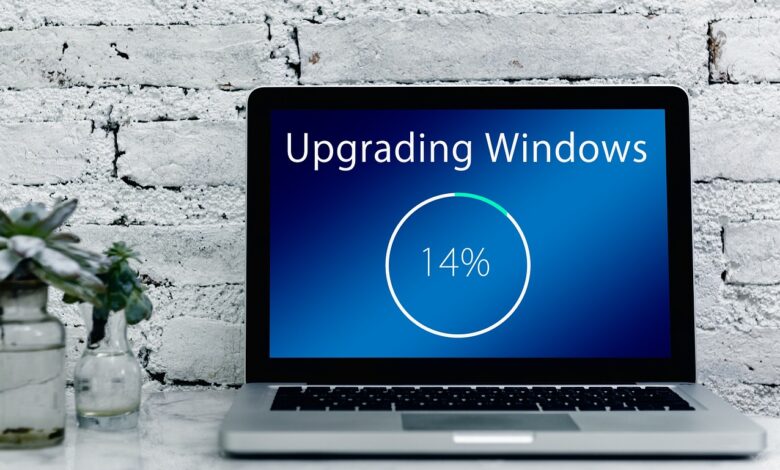
A percentage that stops moving does not prove your update has frozen. Windows installs updates in four documented phases: scan, download, install, and commit and restart. During long parts of that process the progress bar barely moves while the PC keeps working in the background. So when Windows Update looks stuck, check whether the update processes are still active before you touch the power button.
This matters because both mistakes cost you something. If you force a restart during a live install, Windows can roll the update back or leave itself in a worse state. If you keep waiting on an update that has really stalled, you lose hours. Microsoft doesn’t publish an official “too long” figure, so this guide applies to Windows 11 and Windows 10 home PCs as of September 2026. It ends with a clear rule for when to wait and when to act.
How to Tell If Windows Update Is Actually Stuck (Not Just Slow)
The word “stuck” covers several different situations, and each phase of an update looks different on screen. Microsoft’s description of the update process calls the scan and download phases “invisible to the user.” With feature updates, the download happens in several steps, one after another. After installation the PC “usually (but not always)” has to restart to finish, and until that restart completes it is still running the old version of Windows.
That last point is reassuring. Your working copy of Windows isn’t overwritten the moment the progress bar appears. The update is only fully in place after the commit-and-restart phase finishes.
Quality updates and feature updates don’t take the same time
Microsoft separates two main kinds of update. Quality updates are frequent and mostly carry small fixes and security patches. Feature updates come about once a year and add new functions. Microsoft also notes that feature updates need more data. If you’re on a metered connection, such as a mobile hotspot, some updates won’t install automatically at all. On a slow or capped connection, a feature update that seems to be taking forever may simply be downloading.
For the stage-specific symptoms, Microsoft’s troubleshooting page says that for an update pinned between 51% and 99%, “the time required to download and install updates depends on connection speed, network settings, and the size of the update.” For an update stuck at 0 percent or stuck at 100 percent, the same page points to connection and storage problems. Your PC needs at least 16 GB of free space to upgrade a 32-bit system, or 20 GB for 64-bit.
One reader’s experience shows why the number on screen can mislead you. In a Reddit thread about an update stuck at 99%, the poster wrote: “I did try turning it off to be honest, it started the update again and stopped at 99%.” That is one person’s report, not a pattern. Still, it shows that a restart based only on the percentage can put you right back where you started.
A note for Windows 10 users
Microsoft ended Windows 10 support on 14/10/2025. Since then, it no longer provides feature updates or security updates for Windows 10 unless the PC is enrolled in the consumer Extended Security Updates (ESU) programme, which covers devices until 12/10/2027. If your Windows 10 PC checks for updates and nothing arrives, that may be because updates are no longer offered, not because anything is stuck.
In this article, “stalled” means one specific thing: the on-screen state hasn’t changed and the update processes show no activity over a long observation window. Microsoft doesn’t use this definition. It’s the working test the rest of this guide uses, and the next section shows you how to measure it.
What Task Manager Shows During a Real Update
Microsoft describes Task Manager as Windows’ built-in tool for monitoring process performance and resource usage. Its Processes tab lists apps and background processes along with how much of the PC’s resources each one is using. The Details tab lists every running process. This is the evidence the frozen progress bar can’t give you. You can use it whenever you can still reach the desktop, for example while the update is downloading or installing inside Settings.
Checking Task Manager is read-only. You’re only looking, not changing anything.
The processes worth watching
| Name in Task Manager | What it does | Activity means | Long silence means |
|---|---|---|---|
| Windows Modules Installer Worker (TiWorker.exe) | Microsoft Q&A describes it as the process that is started when an update has to be downloaded or installed | Update work is in progress. High CPU or disk use during an update is normal, according to the same answer | This worker currently has no update work running |
| TrustedInstaller | Microsoft’s own troubleshooting article names the Trusted Installer service as the part that completes update installation | System files are being changed | No installation work is happening right now |
| Service Host: Windows Update | The Windows Update service, the one Microsoft’s reset steps stop and start as wuauserv | Windows is checking for, downloading, or preparing updates | The update service is idle |
In the Microsoft Q&A thread linked above, the person asking reported high CPU but “not that much disk” from the installer worker and guessed it was because their PC has an SSD. That is one user’s observation, not a rule. It’s a good reason to watch both the CPU and Disk columns instead of just one.
Diagnostic sequence, part one: collect the evidence
Step 1: Open Task Manager. Press Ctrl+Shift+Esc, Microsoft’s shortcut for Task Manager. If you see a small, condensed window, select More details to get the full view.
Step 2: Find the update processes. On the Processes tab, look for the three names in the table. You can also use the Details tab and look for TiWorker.exe and TrustedInstaller.exe.
Step 3: Write down a baseline. Note the time, the percentage or status message shown in Settings, and the CPU and Disk values next to each update process.
Step 4: Check again every 15 minutes. Record the same three things each time. Update work can come in bursts, so one reading of zero means very little. Several readings in a row tell you much more.
Step 5: Don’t end any of these processes. Warnings about ending them appear in the next section and in the FAQ.
The 15-minute interval is this guide’s own rule of thumb, not a Microsoft figure. It’s short enough to catch bursts of activity and long enough that a single quiet moment doesn’t fool you.
When to Stop Waiting and Restart
Microsoft doesn’t publish a safe-to-restart time, and no Microsoft page found for this guide gives one. The decision rule below is therefore an editorial synthesis. It rests on three documented facts:
- Update phases can run for a long time without visible progress, as Microsoft’s phase description shows.
- Microsoft’s first response to an update stuck at 51–99% is to check for updates again or run the troubleshooter, not to cut the power.
- Interrupting a live update carries a real risk. In a Microsoft Q&A answer, a community responder warned that turning a machine off during a major update “might wreck your installation.”
The rule leans toward caution because the two mistakes aren’t equal. Waiting too long costs time. Restarting too early can cost you the update, or more.
Diagnostic sequence, part two: apply the rule
If any update process showed activity during your checks: keep waiting. The update is working, whatever the percentage says.
If the desktop is reachable and three or four checks in a row (about 45 to 60 minutes) show no activity from the update processes and no change on screen: treat it as a probable stall. Your next step is still not the power button. Run the Windows Update troubleshooter first, as shown in the last section. Then use Settings to restart, which is gentler than cutting the power.
If you’re on the full-screen “Working on updates” screen and can’t reach the desktop: you can’t see any processes, so time is the only evidence you have. Give it several hours, especially for a feature update or on an older PC with a hard drive.
For the full-screen case, Microsoft has documented an example where a hang-looking screen was not permanent. Its article on updates that hang and are uninstalled describes a PC that showed “Working on updates, 13% complete, Don’t turn off your computer” and seemed to hang for about 15 minutes. It then restarted on its own and removed the updates, because the installer ran past its default time limit. The article describes one specific fault, not every stuck screen. It does show, though, that Windows has its own timeout and recovery behaviour, which is one reason to give the screen time before you step in.
One reader’s account gives a sense of the other extreme. The poster in a Reddit thread about a “Wait while we install system updates” screen described a 10-hour wait. A reply said “10 hours is way too long,” and a restart resolved it in that case. Treat that as one anecdote about how long a wait can stretch, not as proof that restarting always works.
If You Restart: What to Do and How to Check
Before you force anything, plug a laptop into the charger. Microsoft’s troubleshooting steps include making sure the device is properly plugged into a power source, and a laptop that dies halfway through recovery is a second interruption on top of the first. If your power supply is unreliable, wait until you have steady power.
Warning: a forced shutdown during an update can undo the update or trigger repair screens. If your drive is encrypted, some recovery tools will ask for your BitLocker recovery key. Make sure you know where that key is before you continue.
Step 1: Restart the gentle way if you can. From the desktop, use Start > Power. Microsoft’s own troubleshooter instructions have you restart the device once the troubleshooter finishes.
Step 2: If the screen is completely unresponsive, force the power off. Press and hold the power button until the PC shuts down. That’s the same action Microsoft describes in its Windows Recovery Environment guide. Then switch it back on.
Step 3: Watch what happens on the next start-up. There are three likely outcomes. The update may finish. Windows may show “Undoing changes made to your computer” and go back to the previous version, which it was still running until the commit phase finished, according to Microsoft. Or, if Windows fails to start correctly several times, it will automatically open the Windows Recovery Environment, which the last section covers.
Confirm the result in update history
This step answers the worry one Windows 10 user raised in a Reddit thread after forcing a shutdown: whether the interrupted updates, mostly security and Defender updates, had left a gap. The history screen tells you.
- Windows 11: Start > Settings > Windows Update > Update history.
- Windows 10: Start > Settings > Update & Security > Windows Update > View update history.
If the update shows as installed, you’re finished. If it failed, write down the error code, because the next section uses it. Then select Check for updates so Windows can offer the update again. Microsoft’s FAQ suggests this same check to make sure the device is up to date.
Targeted Fixes for a Confirmed Stall
Use these fixes only after the checks above have confirmed a real stall, or after update history shows a failure. Microsoft advises you to back up your personal files first, and that advice matters more the further down this list you go. Work from the top, because each step changes more than the one before it.
Start with the troubleshooter and the basics
On Windows 11, Microsoft points you first to the Windows Update troubleshooter in the Get Help app. The same troubleshooter is under Start > Settings > System > Troubleshoot > Other troubleshooters, where you select Run next to Windows Update. On Windows 10, the path is Settings > Update & Security > Troubleshoot > Additional troubleshooters.
Microsoft’s general steps also include checking your internet connection, unplugging external drives and docks you don’t need, setting the date and time to update automatically, and freeing up disk space.
Match the error code to the fix
If update history shows an error code, Microsoft’s error table lets you aim at the actual cause instead of trying fixes at random. These are the codes on that page that relate most closely to stuck or failed installs:
| Error code | Cause according to Microsoft | Fix Microsoft lists |
|---|---|---|
| 0x800705b4 | Update took too long to install or was interrupted | Check the connection, temporarily disable third-party antivirus or firewall, restart |
| 0x80240034 | Update stuck because of an incomplete update or connection problem | Check the Windows Update service is running, run the troubleshooter |
| 0x800f0922 | Not enough disk space, or .NET Framework or other component problems | Free up space, turn off any VPN |
| 0x8007000d | Corrupted Windows Update files or update cache | Run the troubleshooter, clear the update cache |
| 0xC1900101 | An incompatible driver | Update or reinstall network or graphics drivers, try a clean boot |
Clear the update cache
When the cache is the likely problem, Microsoft gives a method that doesn’t need commands. Press Win+R, type services.msc and press Enter. Stop the Windows Update service. Delete everything inside C:WindowsSoftwareDistribution, then start the service again, as the troubleshooting page sets out.
Deleting these files removes downloaded update files, not your personal files. Windows will download the updates again, which uses more data.
Advanced steps in Command Prompt
Microsoft recommends the next steps only if you’re comfortable with the command line. Each needs administrator rights. Open Command Prompt with Run as administrator, type each command, and press Enter after each one.
To rename the update folders, Microsoft lists this sequence:
net stop bits
net stop wuauserv
ren %systemroot%softwaredistribution softwaredistribution.bak
ren %systemroot%system32catroot2 catroot2.bak
net start bits
net start wuauserv
Restart the PC afterwards.
To repair system files, run DISM.exe /Online /Cleanup-image /Restorehealth. Wait for the message that the operation completed successfully, then run sfc /scannow and let it reach 100%. To check the drive for errors, run chkdsk /f C:. It schedules a repair that runs when you restart.
The same page also covers temporarily uninstalling third-party security software and doing a clean restart, which starts Windows with fewer drivers and programs so that software conflicts are ruled out.
When Windows won’t start
If a forced restart leaves Windows unable to start, the Windows Recovery Environment offers Startup Repair, Uninstall Updates, and System Restore. Reset this PC is also there, but it’s a much bigger step. If Windows won’t open the recovery screen by itself, Microsoft says you can interrupt start-up twice by holding the power button as the logo appears. On the third start, the Automatic Repair screen should appear. Choose Advanced options.
To remove the update that caused the problem, Microsoft’s steps are Troubleshoot > Advanced options > Uninstall Updates. If Windows still starts, you can do the same in Settings under Update history > Uninstall updates. Microsoft notes that some updates can’t be uninstalled, and says it doesn’t recommend removing updates unless you have to. If you see a blue screen with a stop code at this point, write the code down before choosing a recovery option. It tells you more about the cause than the update screen ever will.
Before You Change Anything
The frozen percentage is the least reliable information you have. Background activity is the most reliable, and you can read it in Task Manager in a few minutes whenever the desktop is available. If the update processes are active, the update is working. If they stay silent across several checks and the screen doesn’t change, you’ve found a real stall. Even then, the troubleshooter and a normal restart come before cutting the power.
Before you try any fix from the last section, back up your personal files, keep a laptop on the charger, and make sure you can find your BitLocker recovery key if your drive is encrypted. After any restart, open update history before assuming the problem is solved or getting worse. Working this way means you only interrupt Windows when there’s evidence you need to.
FAQ
Did forcing a shutdown during an update damage my PC?
Not necessarily. Windows keeps running the previous version until the commit phase finishes, and it can roll back or open its recovery tools if start-up fails. Check update history to see what actually happened.
Why does my PC say “Undoing changes made to your computer”?
Windows is removing an update that didn’t finish installing and returning to the previous version. Let it complete, then check update history for an error code and try installing the update again.
Is it safe to end Windows Modules Installer Worker in Task Manager?
Don’t end it while an update is running. It’s the process Windows uses to install updates, and interrupting a major update may damage the installation. Watch its activity, but don’t stop it.
Can I use my laptop on battery while it updates?
Microsoft recommends keeping laptops plugged in so updates have enough power to finish. If the battery runs out mid-install, that’s another interruption, so connect the charger before a long update.
My Windows 10 PC gets no new updates. Is something broken?
Probably not. Microsoft stopped providing Windows 10 updates on 14/10/2025 except for PCs enrolled in the Extended Security Updates programme. Check whether your PC can move to Windows 11 or join ESU.
