
When a laptop is running slower than normal, the appropriate question isn’t what can I turn off? The question is which part of my laptop is out of resources? Once that question is answered, you will know which fixes will help speed up your laptop and which will only create noise. Windows already records the amount of resources used by each part in Task Manager. Under the performance Tab, Windows displays a list of which of your two resources, Processor, Memory or the Drive, are being used up, and Microsoft’s Performance Guidance for Windows points to these tabs for identifying which applications are using large amounts of resources.
Reading the numbers displayed on the data monitor can be confusing. 100% on the data monitor does not mean that the entire drive has been filled with data. In one Microsoft Q&A case, an SSD showed 100% on the data monitor while only writing 145KB/s. Also, when you take a reading of your Hard Drive while performing a Windows OS update this may also create confusing results. The best way to find out what part of your laptop has run out of resources is to take an accurate reading of the resources used by your laptop.
Open Task Manager and See What’s Actually Happening
Pressing CTRL+Shift+Esc is the fastest way to open the Windows Task Manager. Microsoft lists this shortcut for opening Task Manager. Right-clicking on the Start menu and selecting Task Manager is an easy way to open the Task Manager with laptop keyboards where the Escape key shares a key location with the Function key (F1-F12). If Task Manager opens as a small window and doesn’t show any tabs, you can toggle between the simplified and detailed views of Task Manager by pressing ALT+D.
Finding Task Manager is pretty easy. Knowing what you need to see in Task Manager is what makes the information valuable. If you were to take only one screenshot while Windows installs an update, you’ll be able to determine that the process is active, but you won’t be able to determine which process is responsible for the installation. Use this sequence to get a clean reading:
- Restart properly first. Go to Start > Power > Restart. HP notes that a full restart closes background processes in a way sleep mode doesn’t. If the laptop feels fine afterwards, the slowdown was building up over a long session rather than coming from a fixed cause.
- Check that no update is running. Open Settings > Windows Update. If something is downloading or installing, let it finish before you measure.
- Reproduce the slowness. Open the browser, app or file that normally makes the laptop hang. If the problem is a slow startup, open Task Manager as soon as you can after signing in.
- Watch the Performance tab, not Processes. Select Performance and keep your eyes on CPU, Memory and Disk for about a minute. The rule used in this guide is simple: a short spike is normal, but a resource that stays at or near the top for the whole minute while the laptop feels sluggish is your suspect.
- Note your drive type. In the Performance tab, Task Manager shows whether each disk is an SSD or an HDD. You’ll need this if the disk turns out to be the problem.
- Only then open Processes. Sort by the column that matched the saturated resource (click the CPU, Memory or Disk header) to see which app or service is using it.
The order of the tabs in Task Manager is important because each tab answers a specific question. HP provides a guide for using Task Manager that describes each tab on their website and provides information on how the third column relates to the diagnostic.
| Tab | What it shows | When to use it in this diagnosis |
|---|---|---|
| Performance | Live graphs of CPU, memory, disk, network and GPU | First: find which resource is saturated |
| Processes | Running apps and background tasks with their resource usage | Second: find what is using that resource |
| Startup apps | Apps that launch when you sign in, with an impact rating | When the slowness is worst at boot |
| Details | Every running executable, with extra optional columns | Only for deeper checks later |
The important takeaway is that the Processes tab indicates which processes are running, while the Performance tab indicates which processes have exceeded their allocated resources. In Windows 10, instead of using Startup apps for the tab that contains the startup apps in the Task Manager, the tab is labeled Startup rather than Startup apps under the Apps section, and the remaining steps are the same as indicated above.
What Each Task Manager Reading Actually Means
The most common error in understanding the Disk percentage is based on the fact that a computer having 100 percent disk utilized does NOT mean that the disk is now full, and that the 100% disk number does not provide any indication that the disk is experiencing a hardware failure. The HP documentation on the Disk section states that Disk Usage displays how much time the drive was utilized and the rate of data transfer on a disk. This means that the Disk Percentage represents how much of the time the Disk Drive has been “busy,” but NOT the amount of disk space or volume of data being transferred. As an example of this confusion, one r/pchelp user noted in the r/pchelp thread about 100% disk at 0.1MB/s: “The Disk usage only indicates how much of the disk busy time is being used, not how much data is being processed.”
Because of this, it is entirely possible to have a drive that is at 100% utilization and that is hardly moving any data from the computer. An example of this type of drive would be a mechanical drive processing multiple requests for small files that are scattered throughout a filesystem and therefore keeping a drive busy, for example. Microsoft explains that the same distinction between busy-time and work-done can be applied to the processor; that is, time-based counters measure how long the processor is busy, while utility counters measure how much work it actually does.
CPU readings change from time to time, so there may be some older guides that list numbers that do not match what’s happening right now with CPU readings. Also, since Windows 8, the Task Manager has reported a value called the “Processor Utility,” a frequency-adjusted value, which has caused some confusion among performance engineers such as Alois Kraus, who found that at some times, the overall graph could report 100% while only 5 of his 12 logical processors were busy. On 28/02/2025, Microsoft made an announcement stating that starting with Windows 11 (the future release), Task Manager will change to a “Standard” metric for CPU readings on the Processes, Performance, and Users pages. The old “Processor Utility” metric will still be shown in a secondary optional column labelled “CPU Utility.” Alois Kraus confirmed that the issue was resolved in the release of Windows 11 24H2 and later releases. The Microsoft announcement included Windows 11, so it cannot be assumed that a Windows 10 machine will also include the fix.
Here is what each reading measures, and what it can’t tell you on its own:
| Reading | What it measures | What it does not tell you |
|---|---|---|
| Disk: Active time (%) | How much of the time the drive was busy | How full the drive is |
| Disk: Read/write speed | How much data is moving right now | Whether the drive is keeping up |
| Disk: Average response time | How long requests wait. HP treats values above 20ms as a sign of performance issues | Which app caused the wait |
| Memory: In use / Available | RAM taken by apps and Windows, and what’s left | Whether the laptop is short of RAM for your work |
| Memory: Cached | Data Windows keeps ready, which can be quickly freed when needed | Nothing about a shortage. Cached memory is not “full” memory |
| Memory: Committed | Memory reserved by apps, against a limit equal to RAM plus the paging file | Which single app is responsible |
| CPU: Utilization | Processor load | Temperature |
| CPU: Speed vs Base speed | Current clock against the chip’s rated clock | Why the clock has dropped |
A paging file is simply a very brief description of what it is — it acts as the link between two entries in this guide. It is the physical space on your hard drive that Windows uses to store information when it runs out of RAM, as HP states, and if you have a shortage of RAM, your hard drive is being used as a backup memory source, which is much slower than having memory on your RAM. This means that if you have a shortage of memory, it will show up as hard drive activity.
A degree of saturation is anticipated to be short-term in nature. Microsoft indicates that once Windows Search identifies new files for indexing, it will likely take a few hours to complete this process. A user on r/pchelp noted that some systems utilize a stable 100% usage at a speed of 0.1 MB/s for the duration of a Windows update on a PC with an HDD; in their case, the system was located on an HDD. The other factor which may produce an appearance of normal background activity is malware. Malware can consume CPU and disk resources so that if you see an unfamiliar process performing in close proximity to the top of the list, this is an indication that it should be examined (for the steps involved refer to the CPU section below).
Once you have a clean, one-minute reading, use it to pick a branch:
| What stayed high for the full minute | Likely bottleneck | Where to go next |
|---|---|---|
| Disk only | Storage | If Disk Is Your Bottleneck |
| Memory, possibly with disk also high | RAM, with Windows spilling onto the drive | If Memory Is Your Bottleneck (check this before treating the disk) |
| CPU, with a hot laptop or loud fan | Processor load or heat | If CPU Is Your Bottleneck |
| Nothing unusual after sign-in, but boot is slow | Startup apps | The Startup Tab section below |
The first rule under Memory in the second row of this guide is the author’s premise; it isn’t a policy dictated by Microsoft. When memory is limited and Windows is migrating data off of memory, the performance of the hard drive will not be improved simply by performing a repair on the hard drive as the hard drive activity is symptomatic of the underlying problem which is the lack of available memory.
The Startup Tab: Which Programs Are Actually Slowing Your Boot
If you think a slow laptop startup is your top concern, the Startup apps tab is the only place Windows lists its own ratings for startup apps. According to Microsoft, Task Manager displays how much each app impacts the startup process and the overall amount of resources they utilize when you sign in, including CPU time and Disk I/O. The ratings follow fixed thresholds:
| Rating | Microsoft’s definition |
|---|---|
| High impact | CPU usage takes more than 1 second, or disk usage is more than 3 megabytes |
| Medium impact | CPU between 300 milliseconds and 1 second, or disk between 292 kilobytes and 3 megabytes |
| Low impact | CPU under 300 milliseconds and disk under 292 kilobytes |
| Not measured | The app is enabled, but there is no data yet |
| None | The app is disabled |
Ratings were created from data collected through Microsoft’s startup applications page, and the rankings represent how much “cost” each app has at startup. The rankings provide a reference for where to look when trying to identify problematic startup items, but there is no information on how many seconds or minutes could potentially be saved due to the classification since Microsoft has not released a time-saving estimate.
To disable a startup item, launch Task Manager, click a startup item, right-click the item, and select Disable. Disabling an item will prevent it from opening automatically when Windows boots, but you can manually access the application by clicking on the application’s icon or shortcut on your desktop. You can re-enable an application you previously disabled by following the same procedure. The same list is also under Start > Settings > Apps > Startup.
While you may feel that you need to eliminate clutter from Windows, it is also important to think about which applications you want to keep running at startup. According to HP’s Task Manager guide, they advise against disabling antivirus software, Microsoft services, Windows services, driver utility apps, or driver support applications such as touchpad, keyboard, display management, etc. In addition, HP lists other “safe” options for a startup such as game launchers, music streaming applications, update-checker applications, and messaging applications that you do not require immediately after a computer starts. HP’s Slow Laptop Guide has cloud storage sync in its list of “Keep Enabled” applications. As a result of the two HP resources differing somewhat on cloud sync, it is recommended that you choose based on your own personal need for keeping files in sync immediately after signing into the computer.
To see what fixes worked for you, you should turn off more than a few High-impact items at once. You should do this so you know what changed. This process also helps determine if a feature stops working and you can undo the change. Microsoft’s own “clean boot” procedure works on this basic premise. Microsoft disables all start-up items and non-Microsoft services, and then they are turned back on in groups of half to isolate the problem. Microsoft suggests tracking what you have disabled as it is possible to temporarily lose some functionality of your computer, and they also warn that the “System Configuration” tool used could prevent your computer from working if not used correctly. Use this option only when the simplest method, the “Startup” tab, has not identified the cause of the problem.
There are limits to the success of StartUp trimming. The user who posted this problem on reddit (r/linux) reported it took him several minutes to log in and 10–20 minutes for startup apps to load after upgrading to Windows 11 (he had an 8 Gb laptop from 2019). He has only one user account, but it is an example of what to look for: If your delay continues after a clean reset with very few startup applications, the issue likely has to do with hardware; therefore, refer to the next few sections.
If Disk Is Your Bottleneck: What to Do About It
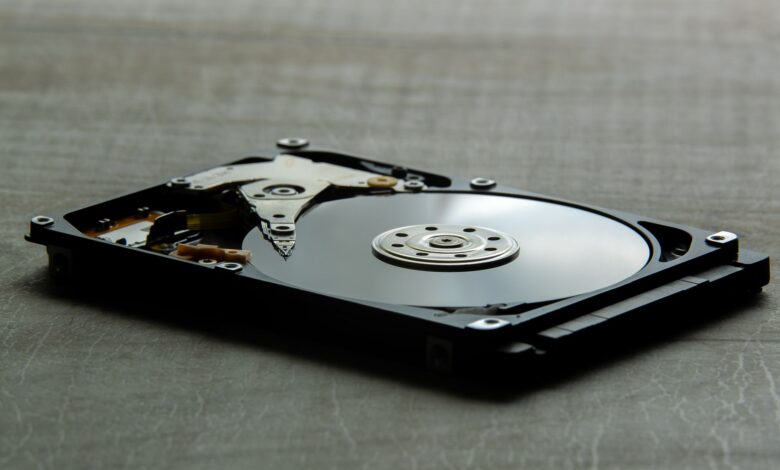
Use the drive type listed here based off of the Performance tab, as it will change what you take away from the readings. As HP puts it – HDDs (which use spinning discs) are significantly slower than SSDs. Therefore, a laptop configured with an HDD can easily reach its maximum disk usage (100%) during any background work that an SSD would simply take care of with ease.
A fully functioning drive may still be the bottleneck, as was the case reported by the owner of an Acer Aspire with a 1TB WD HDD. Even though CrystalDiskInfo gave a health reading of “Good Health,” the laptop would take upwards of 30 minutes to start, become unresponsive while doing light tasks, and present a high disk usage during the periods of unresponsiveness – all of which persisted through multiple formats. The takeaway point in that instance is that health tools tell you, “is this drive about to fail?”, not “is this speed capable of running the new version of Windows?”. The two are different questions.
Find what is keeping the drive busy
Look in Processes and order them by Disk. If there is a standout app, like a cloud sync client or browser, or an antivirus scanning utility, it may be your culprit. The more difficult situation arises when Disk is running at 100% but none of the individual applications show much activity. An explanation provided in the r/pchelp thread describes that when Windows performs system updates, you often see several svchost.exe entries at around 0.1MB/s since the tasks are being performed via background processes as opposed to a single application.
Resource Monitor goes deeper. In Task Manager, go to Performance and select Open Resource Monitor, then open the Disk tab and sort by Total to see which process is doing the most reading and writing. A Windows Explored walkthrough shows how the Disk Activity pane’s File column reveals the folders being read and written. In its example, the folder paths showed Windows updates being installed. That walkthrough is from the Windows 7 era, so treat the layout as a guide rather than an exact match for your screen.
The usual background causes, and what to do about each
If you find that the activity on your hard drive is related to Windows Update, you should let Windows Update finish downloading the updates before continuing to monitor your performance, preferably while the computer is plugged into an AC outlet. Microsoft has advised users to consistently keep their systems updated regularly, as Microsoft states that new updates typically include various fixes and enhancements that improve performance.
The number of items that you index in Windows Search will vary based on the total number of items on your computer. Microsoft states that the average Windows computer indexes fewer than 30,000 items, although performance issues may start above 400,000. To find your indexing count in Windows 11, you can view it by going to the Settings menu, selecting Privacy & Security, and expanding the Searching Windows icon. If your index count is substantial, you can exclude some of your larger folders from being indexed by adding an excluded folder in the same location of the settings window. Microsoft also warns that there are certain “Optimize Your PC” utilities that can disable the Windows Search service, and Microsoft recommends that you do not utilize those types of applications if you want to use the Windows Search feature.
SysMain is the Service that preloads your frequently used Applications. There are conflicting recommendations for deactivating the SysMain Service. One suggestion located in a Microsoft Q&A post regarding % Disk Usage being maxed out, recommends disabling SysMain and Windows Search by going to Services and disabling both Services there; while another response located in another Microsoft Q&A thread recommends keeping SysMain enabled as it helps with launching your Applications faster. The best way of handling this situation would be to use disabling SysMain as a test by disabling and testing the one-minute reading again; if there is no improvement, simply reset SysMain to its previous Startup Type.
The second area of potential System Performance reduction due to Low Disk Space, according to Microsoft, is: Start, Settings, System, Storage, Storage Categories and run/execute under Run Storage Sense Now; or: Temporary Files and Remove Files. According to HP and other Technical Support Companies, users should delete files from their drives as soon as they reach above 85 per cent full, and keeping at least 10–15% free on SSDs, and they should always keep between 10 and 15 percent of free space available on any SSD drive. This is an entirely different issue from 100 percent Disk Activity Time; even a completely empty drive could show 100% Disk Activity Time; or a fully utilised drive may show no Disk Activity Time at all.
When the pattern points at the drive itself
There are 2 explanations listed for a drive that is showing 100% activity, but is not moving much data and does not appear to be in use. On a r/pchelp discussion page, many commenters suggested that the most common cause was a background update on an HDD and a failing drive, while some suggested that it could be indicative of an already failing hard disk drive. In the case where a Microsoft Community Support Specialist suspected the SSD might be at risk of damage and asked the user to back up files first, he advised the user to make sure that they had backed up their files before he could provide further assistance. This was not an official diagnosis; however, the Microsoft Community Support Specialist’s recommendation to back up files first is still appropriate, regardless of whether a backup was subsequently required.
The disk-check command suggested in the Microsoft Q&A 100% disk thread, chkdsk /f /r, needs a warning before you use it. Microsoft’s documentation says /r locates bad sectors and recovers readable information. It must lock the drive, so on your main Windows drive it runs at the next restart and you can’t use the laptop until it finishes. On large HDDs, “high-hour runtimes aren’t uncommon,” and Microsoft says interrupting chkdsk isn’t recommended. Back up your files first, plug the laptop into power, and run it when you can leave the laptop alone for hours. It needs a Command Prompt opened as administrator.
If Memory Is Your Bottleneck: What to Do About It
A high memory percentage on its own isn’t a fault. The two HP pages give different thresholds. HP’s slow-laptop guide says that if you regularly see usage above 80 per cent, more RAM would likely improve performance. HP’s Task Manager guide calls 60–80% normal and says to worry only at sustained 95–100% with performance degradation. Both agree on the condition that matters: memory is your bottleneck when usage stays high and the laptop is struggling. A high number on a laptop that feels fine isn’t a problem to solve.
In Performance > Memory, look past the headline percentage. Cached memory is data Windows keeps ready, and a Microsoft Community Support Specialist explains it does not mean the memory is “full,” because it can be quickly freed. Committed memory is the one that tracks real pressure. Mark Russinovich explains that the commit limit is the sum of physical memory and the paging file, and when running programs demand more than the RAM can hold, Windows moves data to the drive. That is why this branch is checked before the disk branch. The same Microsoft Q&A answer notes that swapping to the hard disk can significantly reduce performance, because disks are much slower than memory.
To identify what’s causing problems, sort your Processes by memory usage. Browsers tend to be a common culprit, and according to HP, video streaming and heavy web apps (with many tabs open) can take up considerable resources. You should also look for memory leaks. According to HP’s article about Memory Leaks, the Indicators include a commit size that steadily increases, memory usage that never decreases, and closing the app not releasing memory. If you’re seeing one app meet the above criteria, consider updating, restarting, or reporting the app to the app developer.
Windows 11 is no different, as illustrated by a user’s laptop running version 25H2. The user reported having eight instances of WorkloadsSessionHost using nearly 6GB of RAM while the computer was idle. The Microsoft moderator who responded to the user’s post stated that the RAM usage was “definitely outside the norm”, and he couldn’t find any other reports of this scenario. He recommended disabling the Recall and Click to Do features under Settings > Privacy & security. The moderator also suggested setting the Windows AI Fabric Service (WSAIFabricSvc) to Manual in Services. Although this is only one example, there does not appear to be any widespread issues, but if you are seeing the same name appear at or near the top of your list of processes, that could be a starting point for finding a solution.
Unless you have a particular reason to modify it, leave the paging file as is. By default, Windows automatically controls the size of the paging file; according to Russinovich, the presence of a paging file generally means more usable memory for the system. Additionally, Russinovich states that the widely published “multiply your RAM by 1.5” method to calculate a sufficient paging file size is a waste of time and energy. If you are unable to reduce your memory pressure while using your laptop by closing programs and removing unnecessary applications from your start-up page, it is likely that there is not enough RAM on your laptop for the workload being handled, and the hardware section of this guide provides information on how to remedy this situation.
If CPU Is Your Bottleneck: What to Do About It
A processor pinned near 100% has two very different explanations. Either something is genuinely asking for a lot of work, or the chip has slowed itself down. Sort Processes by CPU first. A named app at the top, such as a video export, a game or a browser tab running a heavy site, is a workload problem you can close, pause or schedule. An unfamiliar name deserves suspicion. HP lists unknown publishers, high resource usage when idle and random alphanumeric names as warning signs. Microsoft’s scan path is Start > Settings > Privacy & security > Windows Security > Virus & threat protection > Quick scan.
If multiple processes are utilizing the majority of the processor’s capacity and you cannot identify the source, check for excessive heat. Microsoft describes that excessive heat [can cause your laptop to throttle its performance] because of a process called thermal throttling. Heat-related issues include a laptop that feels hot when touched, a laptop with a fan that runs continuously and loudly, and a laptop that experiences a lag or freeze. You can verify whether your laptop is experiencing a heat-related issue by using Task Manager. Comparing the CPU Speed to the Base Speed in the task Manager allows you to determine if the processor is being throttled because of excess heat. The following is an explanation provided by Microsoft of the concepts contained in its article on CPU counters: A processor operating at 50% frequency while the CPU is operating at 100% utilization can only produce half of the work of a CPU operating at full frequency. If the value of CPU Speed is less than the value of CPU Base Speed while the laptop is under heavy load and has become hot, it is likely that excessive heat is the cause. This conclusion is dependent upon the value of Speed dropping significantly below Base Speed due to excess heat. This conclusion cannot be confirmed because both heat and CPU operating frequency affect power settings and the power settings of the processor.
Prior to using digital fixes for heat issues, you should try to solve the problem with the use of physical solutions first. The recommendation from Microsoft regarding the physical fix for heat issues is that your laptop remains on a hard, flat surface with ample airflow rather than a bed or couch, and cleaning the vents gently with compressed air may help with overheating issues. Many times, it may be necessary for your laptop’s fans to receive an extensive cleaning or replacing of the thermal paste if overheating continues. Therefore, if your laptop’s fans or thermal paste must be replaced, HP suggests that you leave the service of this issue to a qualified technician because opening up your laptop to service it may void the warranty.
The Power Mode setting is one of the most commonly mentioned settings for anyone who is requiring assistance as described above. To access Power Mode, you would follow the following path: Start > Settings > System > Power & Battery > Power Mode > Best Performance. Be advised; selecting the Best Performance mode will cause your laptop to use more battery power; additionally, it may also cause your laptop to overheat—creating a paradoxical dilemma. In cases where your CPU is throttling due to Heat, using this Power Mode may only further exacerbate the problem. Best Performance Mode should only be used when the laptop is plugged in and cool; it should not be considered a method of resolving CPU throttling. In the event that your laptop’s processor is old and has been consumed by regular application usage, Microsoft states that software-based solutions will not yield significant results for older computers with outdated hardware.
Confirm the Fix Actually Worked
This is where this guide departs from Microsoft’s own advice, so the reason is worth stating. Microsoft’s performance page says it recommends trying all the listed solutions as multiple factors can contribute to slow performance. That is reasonable if you just want the laptop faster. But if you apply eight changes at once, you can’t tell which one helped, which one broke something, or whether the laptop needs a hardware fix at all. Microsoft’s clean boot method takes the one-at-a-time approach for the same reason: it has you keep track of what you disabled and test in batches.
Using a simple worksheet that lists all of the before and after tests provides an unbiased comparison of your tests. Fill in the first two columns before any change, and the third after it:
| What to record | Before the change | After the change |
|---|---|---|
| What you were doing when the laptop was slow | Same activity, repeated | |
| Resource that stayed high for a full minute | ||
| Its reading (e.g. Disk active time, Memory in use) | ||
| Drive type and free space | ||
| The one change you made |
Perform the same steps again: Restart your laptop again. Confirm that there are no updates being installed and that you are performing the same task again and monitoring the Performance graph as you did before (1 minute). Confirm that the fix worked by seeing how much more space is available on the graph for that resource that was previously pinned and when you now perform the previous task and see if it feels any faster. If the Performance graph shows an improvement and the laptop continues to freeze/hang up, then it is likely that there is now another resource that has become the bottleneck. Therefore, go back to your Performance graphs and evaluate all three graphs again and follow the branch that most closely matches what you have discovered in your evaluation of the three Performance graphs.
If there is no change, revert back to the previous step before attempting the new settings again. Re-enable start-up applications and revert services to their original starting settings. Doing this will help prevent the laptop from accumulating changes that didn’t have any impact on the computer’s performance. After troubleshooting the specific branch of your issue and not having any effect from the settings you’ve changed, you have most likely concluded that you are hitting a limitation with your hardware rather than a problem with your settings.
When the Fix Is a Hardware Upgrade
The diagnosis determines which upgrade to pursue and eliminates the possibility of spending money on a part that isn’t necessary. Match the upgrade to what Task Manager showed:
| What your diagnosis showed | Upgrade to consider | Check before buying |
|---|---|---|
| Disk pinned on an HDD, even after background causes are ruled out | Replace the HDD with an SSD | The form factor your laptop takes: M.2 NVMe, M.2 SATA or 2.5-inch SATA |
| Memory under sustained pressure during your normal work | Add RAM | Whether the RAM is upgradeable at all, and the correct type (DDR4 or DDR5) and speed |
| CPU saturated by ordinary tasks, with no heat or rogue process involved | Usually a newer laptop rather than a part | Your laptop’s age and what else can be upgraded |
According to HP, the largest performance improvement possible on a disk-bound laptop with a mechanical drive is the installation of an SSD, which is the single biggest performance improvement you can make. HP states that the average boot time for a laptop with an SSD has decreased from over 1 minute to under 10 seconds, though this will depend on other factors surrounding the rest of the laptop itself. The earlier mentioned Acer owner was faced with the same decision: should they purchase an SSD or more RAM? Their laptop has a ‘healthy’ hard disk drive (HDD) and already contains 8GB RAM. This is why diagnosis is important; when a disk is heavily accessed and there is adequate memory, adding more RAM will not improve performance.
When considering memory, HP’s user guide suggests 8GB as the minimum for basic tasks and 16GB as recommended for most users. Microsoft has stated that the minimum RAM required to install Windows 11 is 4GB of RAM. However, this is the minimum requirement to install Windows, and not necessarily sufficient RAM for comfortable usage. It is recommended that you check the exact specifications for your model before making any payment. HP also points out that when buying ultrabooks and other premium models, RAM and storage are often soldered to the motherboard and cannot be upgraded. The prices of SSDs and RAM in naira can vary significantly from seller to seller, and can change rapidly, so it is better to purchase based on the part number as opposed to only matching the headline capacity. You should back up all files before removing or changing any drive, and whenever possible, allow an experienced technician to perform the upgrade, as it may require opening the case.
In some cases, a computer’s component is not worth purchasing. According to HP, usually when you have a laptop less than five years old and its RAM is upgradeable, adding RAM is usually more cost-effective, than replacing a computer that’s old and has soldered components; however, if the operating system isn’t compatible, then the upgrade would not work. Windows 10 will be at its end of support on October 14, 2025, and the consumer version of Microsoft Extended Security Updates provide security fixes only, through 12/10/2027, without any new features added. If you have a slow Windows 10 laptop that cannot support the requirements of Windows 11, such as TPM 2.0, then spending the budget for an upgrade on a newer machine may be best for you.
The Fix That Usually Works
The solution that has the best chance of fixing the actual issue is the one represented by the Task Manager’s resource usage showing that your Hard Disk is pinned at 100% for a full minute. Don’t look at the top of the generic list to determine what to do first; instead, take a reading on that one item, make changes to reduce or eliminate the bottleneck, and take a second reading before moving onto any other issues. For a laptop with a mechanical hard drive that has background causes ruled out and shows sustained 100% hard disk usage on the Task Manager, HP cites using an SSD as [the single biggest performance improvement you can make] the most efficient method of improving speed overall with regards to reliability. You would be wasting a lot of money buying RAM or upgrading your laptop when your actual problem lies somewhere else.
Frequently Asked Questions
Is 100% disk usage always a problem?
No. Drive indexing may take a few hours depending on the size of the drive and may cause very high drive usage (100%) at times, but it should not occur for long periods of time unless it is not being updated or if you are performing very light tasks.
Is 8GB of RAM enough for Windows 11?
Microsoft’s installation minimum is 4GB. HP treats 8GB as the minimum for basic tasks and 16GB as recommended, so check your memory reading during normal work before upgrading.
Should I disable SysMain to fix a laptop hanging on 100% disk?
The sources disagree: one Microsoft Q&A answer suggests disabling it and another recommends keeping it enabled. Treat it as a test, and undo it if your reading doesn’t improve.
Why is my laptop so slow right after a Windows update?
Windows Indexer may also be busy doing background indexing tasks. When search finds new files, Microsoft says that indexing could take a few hours will most likely take several hours so keep your computer connected to power and unplugged from power, and allow for further indexing time before measuring performance again.
Will a PC “optimiser” app make my laptop faster?
Use extreme caution when using third-party applications for optimizing your computer. Microsoft alerts users that some “optimize your PC” applications will disable the Windows Search Service entirely, while the only functions that Microsoft’s PC Manager app serves are to perform storage cleaning and startup operations.
