
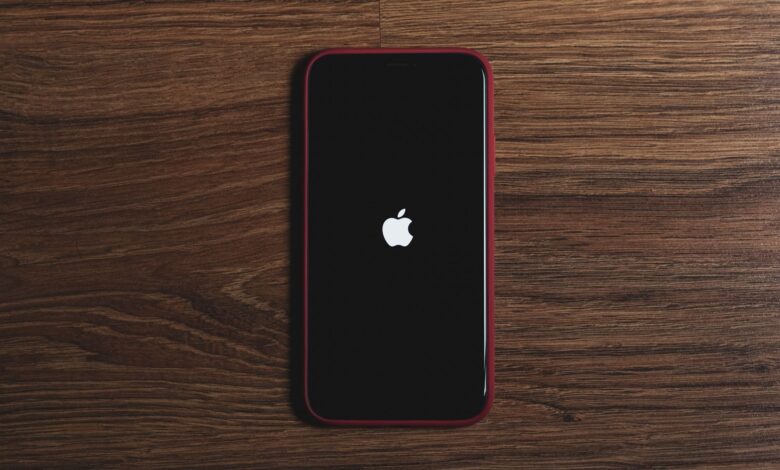
If your iPhone displays an Apple logo and is unable to boot normally, it has not yet been lost in any way; it is only stuck in the process of booting. There are multiple ways to fix this, from performing a normal restart that does not cause any loss of information to resetting the phone and losing all data on it. Additionally, Apple has a built-in device recovery option that allows you to update your device and keep your personal information or restore your device to factory settings and lose everything.
When restoring a device from the Apple logo, the most important thing to understand is that your data is safe. Make sure that your iPhone is not powering down due to a slow downloading process. Use a force restart, attempt an update via the computer, and finally, attempt to restore the device completely. Please note that updating your device does not guarantee that your data will be retained, and any backup created prior to the update will only restore what it contained prior to the backup. Each of the steps outlined below denotes the risk to your device with respect to protecting your data. First, determine whether your device is truly stuck or not.
Is It Actually Stuck, or Just Updating? (The 1-Hour Rule)
According to Apple, having a progress bar under the Apple logo indicates that the phone is still processing. For the iOS devices released after iOS 13 (meaning iPhone 11 or newer), the logo and the progress bar may display for more than an hour on an iPhone or iPad while the device is being restored or during a data transfer. Apple will consider a device to be “stuck” only if the progress bar has not moved for at least one hour.
The progress bar can give the impression that it’s frozen when, in fact, it’s not frozen. Apple states that when restoring a device, the progress bar may sometimes move extremely slowly or seem to be stuck. It will take more time to finish restoring your device or transferring your files, depending on the file size and what type of operation you’re performing. In some cases, the progress bar will fill completely, only to start over again. Apple advises to keep the device plugged into the wall during a Wi-Fi software update, to prevent the device from going dead midway through the update. Apple also recommends pushing any buttons on the device: if a “Updating” message is displayed on the screen, then the update is still proceeding.
The one-hour time requirement only applies to this type of progress bar. If the Apple logo shows with no progress bar and it stays on the screen for several minutes, it could be something different. Apple identifies this in recovery mode, where an hour will not be required to wait for a successful recovery to move forward from this screen. You might need recovery mode. If the Apple logo is continuously flashing, this is yet another type of situation, which is covered in the previous section.
A quick decision path before you press anything
- Bar visible and moving, or it moved within the last hour: leave the phone on power and don’t press any buttons.
- Bar hasn’t moved for a full hour after a restore or migration: Apple’s stuck-logo page goes straight to Recovery Mode and Update (Step 2). If the phone stops responding completely, Apple’s progress-bar page points to a force restart (Step 1).
- Apple logo with no bar for several minutes: start with a force restart (Step 1).
- The force restart didn’t get you past the logo: connect to a computer, enter Recovery Mode and choose Update (Step 2).
- Update failed, or the phone went into Recovery Mode on its own during an update: you’ve reached the Restore decision (Step 3). Check what your backups cover before you click anything.
- The logo flashes on and off, the loop happens only while charging, a button is broken, or the phone looks damaged: read the hidden-causes section and consider service.
The flowchart included here is a practical guide created for this article. It is based on progress bar activity, the one-hour benchmark per Apple’s guidelines and the associated errors that occur with each recovery option described in this article. It is not a procedure published by Apple.
Step 1: Force Restart Your Specific iPhone Model (No Data Loss)
Pressing the right button sequence will make your frozen iPhone perform a force restart (shutdown/reboot). An iPhone Force Restart is described by Apple as performing a restart of your device, not deleting any data. The button combinations used for a Force Restart are model specific, but each model will produce the same results until the last button is held too long, which will take the user to Recovery Mode instead of performing a Force Restart. Therefore, the timing of the release of the last button matters just as much as which button you press.
The Force Restart information is located in the left column of the chart with each iPhone model listed and next to it in the right column, the Recovery Mode for that model will be your Step 2. Both of these sequences have been taken from the Apple website, specifically on how to fix an unresponsive iPhone and put your iPhone into Recovery Mode.
| Your iPhone | Force restart (let go at the Apple logo) | Recovery Mode (keep holding) |
|---|---|---|
| iPhone 8 or later, incl. SE (2nd gen and later) | Quickly press and release Volume Up, then Volume Down; hold the side button until the Apple logo appears | Same sequence, but keep holding the side button until “Connect to computer” appears |
| iPhone 7 and 7 Plus | Hold the side button and Volume Down together until the Apple logo appears | Hold the same buttons until “Connect to computer” appears |
| iPhone 6s or earlier, incl. SE (1st gen) | Hold the Home button and the side (or top) button until the Apple logo appears | Hold the same buttons until “Connect to computer” appears |
The only difference between the two columns in the chart is when you release your last button — and this is also one of the reasons it’s important to know which iPhone model you have before attempting to perform a Force Restart or Recovery Mode. According to Apple, you may have to hold the buttons down for longer than 10 seconds before you will see the Apple logo. Additionally, according to the same page, if your iPhone does not turn back on, you should let it charge for one hour before attempting a second time. If you see a low-battery indicator instead of the Apple logo, you should allow it to charge for 30 minutes or until it turns back on.
Once you receive your phone back from Apple, be sure to back it up prior to performing any other tasks (including updating it or deleting any data). Apple has mentioned two options for backing up an iPhone: through iCloud and through a computer; WhatsApp messages stored on the iPhone have separate chat backups in the Settings menu > Chats section > Chat Backup; otherwise, they will be included as part of the iCloud backup of the iPhone.
The button sequences listed below were taken from Apple’s support website and confirmed on September 29, 2026. The sequences were not performed using an actual iPhone; if your iPhone’s display looks different than the display described in this guide, refer to Apple’s page for your model.
Step 2: Use Recovery Mode to “Update” iOS (Saves Your Data)
If an iPhone fails to fully boot, it could be restored through a process called Recovery Mode. There is a choice between the Restore function or Update function when prompted by the computer. According to Apple, an Update will reinstall iOS and keeps your personal data; however, Restore will remove any personal data from the device. An Update is the least likely way to lose any data if it does not succeed.
What you need
You will need a computer and a USB cable; Apple recommends that you use the original Apple USB cable that came with your iPhone. If your Mac uses macOS 10.15 or newer operating systems, you would use Finder, however, if you have a Mac using macOS 10.14 or older, you will need iTunes to restore. If you are using a Windows PC, you will require the Apple Devices app, which can be downloaded as well as have the latest version of iTunes installed, according to Apple.
The steps
Apple’s recovery mode page sets out this order:
- Update the computer first: the latest macOS on a Mac, or the latest Apple Devices app on a PC.
- Connect the iPhone to the computer with the USB cable.
- Open Finder on a Mac, or the Apple Devices app on a PC.
- Put the iPhone into Recovery Mode using the right-hand column of the table above, holding until “Connect to computer” appears.
- Find your iPhone on the computer. When the Update or Restore message appears, click Update, not Restore.
- Keep the phone connected until it finishes. If the download takes more than 15 minutes, the phone may leave the “Connect to computer” screen. Let the download finish, then put the phone back into Recovery Mode.
Regarding the reason to choose to update over restoring; this is how Apple describes this action. It will replace the version of iOS on the device itself but will not remove any of the user’s information on the device. If there is a problem with the iPhone’s system software, replacing the iOS will solve the issue without losing any data.
If you receive a message from your computer that shows error code 4014, 4013, 4005, or 9, it means there was a disconnection while updating or restoring the iPhone from the computer. Apple states the way to resolve any connection issue is to make sure both the computer and iPhone have been fully updated, perform a forced restart of the iPhone, re-connect the iPhone to the computer, and select the Update option again. If the error appears repeatedly, try another USB cable or another computer to complete the process. If the computer shows error 9, 4005, 4013 or 4014, Apple says the phone or computer lost the connection during the update or restore.
Apple’s recovery resources only cover using the Finder app, Apple Devices app, or iTunes to perform recovery. Apps that claim to be “iOS Repair” tools do not fall under the same category as any of the three above-mentioned resources. The promises made by these for-profit companies that their apps will not result in loss of information on an iPhone are unsubstantiated claims made by the companies themselves.
If a different screen appears
On some iPhones, instead of Recovery Assistant, you will see a screen that shows Continue — by tapping this option, you will begin a recovery process that requires you to connect to a Wi-Fi network, which could take several minutes. There is no information on Apple’s support page about if your data will be saved during this recovery, however they will provide you with the option to submit diagnostic logs to Apple. Submitting these logs is optional, but be aware that they can potentially contain your name, serial number or file names. Wi-Fi network types that require you to log in through a web page are not supported.
With newer models beginning with the iPhone 15 Pro, Apple provides users with the option to restore their device using a second nearby, unlocked iPhone or iPad with iOS 18 or higher installed. Apple refers to this process as a Restore, but like the other methods, you should assume your data will not be saved during this process until Apple has provided more detailed information about how Restore affects data recovery. MacRumors reports that iOS 27 contains a new recovery screen, but so far Apple has not documented any of the options provided or how they affect data recovery; therefore, at this time the only documented recovery method remains via the Computer Update Path.
Step 3: The “Restore” Option (When You Accept Data Loss)
Restoring means that iOS will be restored and all content will be lost on the iPhone. Apple recommends that you update first before using Restore, if you haven’t tried updating yet. Restore is only going to be used after Update fails or if you have accepted the data loss from your phone that you did not back up to iCloud or have a local backup.
Before you click it, work out what will actually come back. An iCloud backup includes the data on the phone that doesn’t already sync to iCloud. Items like iCloud Photos and messages synced with iCloud come back through iCloud itself, not the backup. WhatsApp restores chats only from the last successful backup. Photos or chats that were only ever on the phone won’t be in any of these. If Update has failed and that data matters to you, stop here and decide before you click. Apple also notes that you might need service if recovery mode can’t update or restore the phone.
The only exception that Apple states to go straight to Restore is when the phone is in recovery mode during an update, they recommend restoring rather than continuing an update, and then setting up the phone from the backup. This is a specific situation, and unless you are instructed by Apple on how to perform an update, there is no reason to skip updating first in other scenarios. DFU mode instructions are all pointing toward an erase; Vivid Repairs a UK-based repair shop that includes DFU mode in their guide, clearly state that it is erasing everything from the phone. None of the Apple stuck-logo pages referenced above refer to DFU as an option.
After a Restore, getting your data back is a separate step during setup. Apple’s restore from a backup process asks you to sign in to your Apple Account and pick a backup by its date and size. For an encrypted computer backup, you’ll need that backup’s password. Apps, photos and other content can keep restoring in the background for hours or days, so keep the phone on Wi-Fi and power.
Hidden Causes: Full Storage and Battery Boot Loops
Full storage and an aging battery are both mentioned as causes of the stuck logo issue by Apple Support; however, in Apple’s opinion, they are usually symptoms of more specific concern. For example, Apple states that you require some additional available storage space to download an update. Additionally, when your battery ages, it may lead to unexpected shutdowns. However, neither of the official support sites listing common causes for the Apple logo loop specifically identify these items as possible explanations.
When the phone was nearly full
According to Apple’s Update Guide, you must have sufficient space available before you can begin downloading an Apple iOS update. Apple has documented ways (e.g., offloading unused apps) to gain further space, but all of these suggestions begin under Settings; however, if you are unable to access Settings from a phone with a frozen logo, it may take longer for a solution to be found. An example of one person’s experience with this can be found on a Reddit post from someone in the iPhone 13 Pro Max forum who stated, “I have about 200 Mb free on the phone and it won’t allow me to update, and it keeps cycling on and off. I tried to update using the Apple Devices application (on Windows) since Finder (Mac) was unable to find it, and it actually updated the the first time without losing any data.” This may not guarantee success every time when using the update process on a fully loaded phone, but based on this example alone, it’s definitely worth trying to restore the update prior to erasing the phone. Be sure to back up your data first if you manage to get it working again and do your best to create more storage space afterward.
When the battery may be involved
According to Apple, the internal resistance within a battery will increase as it ages; as a result, when the battery ages and gets to a certain point, the internal resistance will limit the ability of the battery to supply peak power. In addition, as the battery gets older, it will drop in voltage even further when being used under a load (i.e., when the phone is running an application, playing music, or anything else that requires energy). As soon as the voltage of the battery reaches a low enough level, the device will shut down to protect itself from damage. The company has also stated that if the battery is low and/or if it is cold outside, the chance of the device turning off is even greater. This is a possible reason to check the health of your battery if your device continues to turn off when trying to restart. However, Apple has not stated that this will cause a logo loop, and you can only check the Battery Health feature in the Settings app of a functional phone. The best thing to do is follow Apple’s advice to charge your device for approximately one hour and try to power it back on again. Vivid Repairs indicates that if a loop occurs only while your device is plugged into a charger, then it points more towards a problem with the charging hardware as opposed to software issues. This is the repair shop’s interpretation of the situation and not Apple’s.
Apple says battery work should be done by a trained technician. Its safety guide says to stop using the device if you suspect the phone or battery is damaged, for example if it’s swollen, cracked or unusually hot. If you’re not sure whether you’re dealing with software or a failing battery, our guide on diagnosing a phone that keeps restarting walks through the difference.
Before You Change Anything
A frozen Apple logo does not mean all your images and conversations have vanished. Your images and conversations will only be lost if you select “Restore” on your computer or device. If a progress bar is moving, wait for it to finish before doing anything else. Force restart your iPhone using the correct button combination for your iPhone or iPad model while waiting on the progress bar. Always select “Update” before selecting “Restore” whenever both options appear on your screen. If you select “Restore” but are unaware of what is in your backup files, any information saved solely on your phone will be deleted forever.
Frequently Asked Questions
Do I need to use a computer in order to get a phone that is stuck at the Apple logo running again? If you are just trying to perform a force restart of your iPhone, you do not need a computer. On newer-model iPhones, you may also be able to access the Recovery Assistant via Wi-Fi. However, you can access Apple’s Update option listed on their website if you need to keep your personal data; this will be performed via Finder, Apple Devices, or iTunes on macOS or Windows.
Does the Recovery Assistant delete my data? On Apple’s Recovery Assistant website it does not state anything about whether the data is lost or not while troubleshooting. If the iPhone is running the newest version of iOS and the issues persist, the next step is to perform a full Recovery Mode Restore, which will wipe all data from the device.
Can I retrieve my photos following a Restore if I haven’t backed them up? The only way to recover your images would be if they were already saved to another platform (such as Apple’s iCloud Photos). Apple’s Backup Restore will recover all data stored in the supported backup while not being able to retrieve any individual files or photos that were not backed up.
What will happen to my WhatsApp conversations following a Restore? You can only recover WhatsApp chats up until the last time you successfully backed up your chat history via iCloud or through any iCloud backup you performed on your iPhone. When you set up WhatsApp with your existing phone number and iCloud account, you will be able to access your WhatsApp backups.
What can I do if the buttons on my phone are malfunctioning and I cannot enter Recovery Mode? If you have that type of problem with a phone’s buttons, Apple recommends taking the device in for service rather than attempting to open it up and repair it yourself.
