
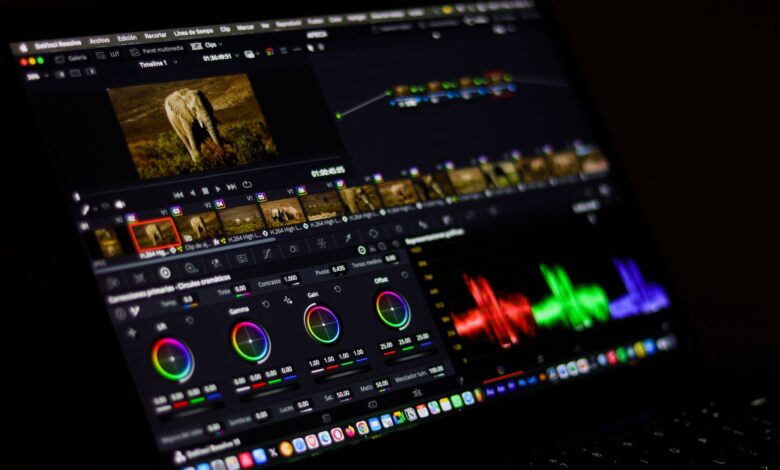
While it is possible to edit and export a video without charge and without watermark on Windows PC, not all video editing software allows you to do this. If you stay within their free usage limits, only some software include the ability to edit and export videos without a watermark (free of charge). Shotcut, OpenShot, VSDC Free, and DaVinci Resolve Free Edition provide you with a clean video file when you export them. Clipchamp and CapCut also provide clean files, provided that all resources used to make the video (e.g. music/sounds, stock images/videos, etc.) are free or from the Clipchamp/CapCut free media libraries. However, the difference between these programs lies in the specifics of how they provide a clean file.
For example, Clipchamp does not add a watermark to your videos, but if you used any of their premium items in your completed project, they will prevent you from exporting that project at all. With CapCut, when you click Export, it checks for premium items in your project and will not allow you to upload/export it if it has premium content. If you use a paid effect with DaVinci Resolve, it will place their logo on your video when you export it. This is an important consideration if you are using a lower-end laptop because determining which video editor will open on your laptop is just as important as not having a watermark on your video. Finally, there is one feature that some video editing programs provide that tells you before you invest a lot of time into a specific project what format or number of frames the finished product will have.
Why Free Video Editors Hide the Watermark Until Export
Many “freemium” products provide you with access to their paid features while editing your project (i.e., you can preview/use the premium features). The only time you will be charged, however, is when exporting the project. For example, CapCut has clearly stated this in its help centre: that you may preview many features of the “Pro” version for free, however, to export your video you must have an active subscription. In addition, according to CapCut, when you hit the export button it will “scan” your project to determine if any Pro items are used. This means that as you edit nothing restricts your use of the features, but the check on your project occurs at the final step. (free users can preview many advanced features, but exporting videos that use them requires an active Pro subscription)
That is one reason why it is a surprise to see that people are paying so much for this service. When the check occurs you have completed your edit; it could take you a long time to remove a paid effect from the timeline if you are required to redo all of the other edits. In contrast to CapCut, Clipchamp has a different approach to handling the same situation. According to Microsoft, you will not be charged for any watermarks that are placed on your video if you use premium stock media or if you use a feature that is not part of your subscription plan, no watermark is added, but you won’t be able to export until you upgrade. Microsoft also adds that Clipchamp gives you “visual clues” on features that are not free while editing your project, however, if you don’t know to look for those some of them may be easy to miss.
The majority of other video editing programs simply put a watermark on any movie you export for free. The Filmora site clearly states that, with the free version of Filmora, you have access to all the editing functions. However, when you export your movie, it will contain a Filmora watermark until you purchase an account plan. The level of frustration created by the Filmora watermark was reflected by the number of posts on Reddit concerning requests for new free video editing software. In one particular post, the original poster stated: “Every single free program I found has been riddled with bloat and a massive watermark, just like Filmora.” They were looking for something “barebones, like Audacity but for video.” The Reddit request for a free editor was one of many such posts.
How We Tested: The Same 60-Second Project on One Windows PC
You can repeat the same method on your personal computer, but you must build a 60-second project in each of the three (3) editors using only your own video clips, one (1) text title, one (1) video transition and one (1) music track. You should also export these projects at the highest level of quality available through the respective free subscription levels of each Editor. When exporting to any of the three Editors, you should note the following for each editor: 1) Export option availability or greyed out (disabled); 2) if a warning/upgrade prompt was provided; and 3) if branding appeared on the finished export file. Be sure to check for branding on the first frame, last frame and at least one frame in the middle because the branding may appear on the ending clip.
The findings contained within this document are derived from each Developer’s own current support documentation (as of the date of writing: 29 September 2026) and the relevant community discussion board threads linked to each editor’s webpage. The only valid proof of your video export will be the export you produce after testing an Editor before creating a video project. The same short test is included again in the “Testing an Editor” section of this article.
Free Editors That Export Without a Watermark
When it comes to downloading software, if you have Windows 11, it’s wise to assess what you currently have installed first. Microsoft supports a built-in video editor called Clipchamp, which allows users to export videos in 1080p resolution free of charge, built into Windows 11 and exports for free at up to 1080p. Using your own media and utilizing Clipchamp’s library of free stock videos will let you export videos in 1080p resolution without incurring any additional fees. Microsoft 365 subscribers can take advantage of certain premium features when exporting videos at the 4K resolution.
Among installable editors, the two open-source options state their terms most clearly. OpenShot’s documentation lists “no time limits, no size limits, and no watermarks on your finished videos” and allows commercial use. Shotcut’s FAQ says it is free for commercial use under the GPLv3 licence and doesn’t need the internet to check a subscription. None of the Shotcut pages checked describe a paid tier, and in one CapCut alternatives thread a user recommended it simply as “free and open source.”
VSDC and MiniTool MovieMaker both make strong claims with conditions attached. VideoSoftDev says VSDC Free exports are free of watermarks, branding or time limits for personal and educational use, but you need VSDC Pro for commercial work. MiniTool says MovieMaker exports videos up to 4K without watermark, for free. That’s the company’s own marketing, and the page doesn’t mention any caps on video length or number of exports.
According to Blackmagic Design, DaVinci Resolve has the most functionality of any post-production software. The free version of DaVinci Resolve can handle 8-bit video at up to 60fps in resolutions as high as Ultra HD 3840 × 2160 and offer resolutions up to Ultra HD (3840 x 2160). The official website for DaVinci Resolve does not appear to mention any type of watermarks on the final output, but numerous users on Reddit that use DaVinci Resolve have reported that the only time their videos had a watermark was when they adds a watermark when you use Studio-only features. The CapCut and DaVinci trap section below covers this.
| Editor | Free export ceiling (vendor-stated) | Watermark on the free tier | What can still stop a clean export | Commercial use on free tier |
|---|---|---|---|---|
| Clipchamp (personal) | 1080p | None, per Microsoft | Premium stock or features block export entirely | Not addressed on the pages checked |
| OpenShot | Presets up to 16K listed | None, per OpenShot | Nothing stated | Yes, per OpenShot |
| Shotcut | Not capped in the docs checked | No paid tier described | Nothing stated | Yes, under GPLv3 |
| VSDC Free | 4K and 8K formats supported | None, per VideoSoftDev | Not for commercial work | No, Pro required |
| MiniTool MovieMaker | Up to 4K | None, per MiniTool | Nothing stated on the home page | Not addressed on the pages checked |
| DaVinci Resolve (free) | Ultra HD at 60fps | None on standard exports | Studio-only effects add a watermark | Not addressed on the pages checked |
| CapCut Desktop (free) | Pro locks 4K/60fps | None if you use only free assets | Any Pro-tagged item triggers the paywall | Not addressed on the pages checked |
Free Editors That Add a Watermark (and What Removal Costs)
Filmora is a good example of a free video editing application that incorporates a company watermark into all exported projects. In their FAQ section, they describe how users can access and use the Filmora app for free with access to all editing functions, but “the only limitation is that exported videos will have a Filmora watermark”, and to have it taken off, the user must purchase a subscription to Filmora. Filmora functions similarly to a full trial version of a software application, meaning it is useful for developing video editing skills, but not suitable for producing finished videos.
The removal costs of the watermark were not verified for the other three editors in naira at the time of writing this article; therefore, users will need to check the checkout page of their own accounts for the prices. CapCut states that the Pro pricing varies by region, device and available promotions, and instructs users to check the Upgrade or Subscription button on their web, desktop or mobile application in order to view their local price. The only fixed pricing information found was on Blackmagic’s DaVinci Resolve Studio ($295 US one-time payment vs. $29.95 monthly subscription payment). With regard to Clipchamp, Microsoft has stated that premium features are available with Microsoft 365 Personal and Family subscriptions. Existing subscribers of Microsoft 365 could be eligible to upgrade to Clipchamp, but they may not know about it.
CapCut’s Pro Template Trap: Watermarks You Don’t See Until Export
CapCut provides a free tier of service, however there are limitations on use of free service. On the desktop version of CapCut, if you are not a pro user and are using Pro Material in your video project, the export options (4K, 60FPS and No Watermark) will be greyed out. If you attempt to export, you will receive a notification that you must upgrade to CapCut Pro to export your video. Pro Materials include templates, effects, fonts, music tracks, stickers, AI Tools and Premium Transitions and Colour Filters (also called LUTs) that are marked with the Pro Badge. CapCut has also indicated that exporting at 1080p will not prevent Watermark Removal on videos that use Pro Materials, and that you must be a CapCut Pro User to remove the watermark, regardless of video resolution. “watermark removal on videos using Pro materials always requires Pro, regardless of resolution.”
Templates are a common way to create a video with the potential for a watermark. There is a separate support page for CapCut that explains that a template-based video will have a small watermark (CapCut) on it at the end of the video. It is recommended that users manually edit their videos, and then scroll to the end of their timeline and remove any clips that automatically include a watermark, as this may occur when using a template to create the video. In an r/CapCut discussion about unexpected watermarks appearing, a user mentioned that the watermark appeared “as soon as I used a template.” Another user speculated that the watermark might be caused by trying out a new text style.
DaVinci Resolve has the same problem as above with the one caveat of it being easier to catch. Blackmagic has some features that are exclusively available within the ‘Studio’ programme; e.g. Magic Mask, AI Spatial Noise Reduction, Film Grain and Optical Blur. As with other forums, one post in the beginner section of r/davinciresolve indicated that when a user used the Speed Warp Slow Motion feature, it resulted in a watermark being placed over the edited video during the editing process. A few of the follow-up posts noted that Speed Warp was a ‘Studio only’ feature. In this example, another user on the earlier watermark thread, remarked that the watermark appeared in his timeline as soon as he used Speed Warp so was able to identify it early on in the edit process.
Will These Editors Run on Your Low-End PC?
A clean export can’t be used if your editor is unable to playback your timeline. The minimum requirements for various applications will differ, with the highest minimum specs being for DaVinci Resolve 21. According to Blackmagic’s release notes, the minimum system requirements for running DaVinci Resolve 21 for Windows are 16 GB of RAM or (32 GB of system memory) for the use of Fusion, and a Graphics Processing Unit (GPU) containing at least 4 GB of Video RAM (VRAM). VRAM is the on-board memory for graphics cards. For most users with budget laptops under 4 GB and 8 GB of dedicated VRAM, the performance of DaVinci Resolve is below the minimum specified by Blackmagic’s release notes.
VSDC requires the least amount of hardware support, with VideoSoftDev indicating a minimum of 2 GB of RAM and a 1.5 GHz processor, while recommending at least 8 GB for HD Media, and 16 GB for 4K Media. It supports Windows 7 and 8, and installation requires Administrator permission. Shotcut specifies its minimum requirements based on the type of footage, requiring at least 4 GB of RAM for SD, 8 GB for HD and 16 GB for 4K video footage. For HD video, it is recommended that users have a 4 processor cores. OpenShot has a minimum RAM requirement of 4 GB with 16 GB recommended, and needs to be installed on a 64-Bit Operating System with at least 2 Processor Cores.
According to CapCut’s download guide, CapCut requires at least 4 GB of RAM, an Intel Core i3 Processor, and 10 GB of storage space free on a 64-bit operating system of Windows 10 or later. MiniTool MovieMaker requires a minimum of 8 GB of RAM, an Intel i5 processor, and 10 GB of free storage space. Clipchamp’s minimum RAM was not found. Microsoft only states that the Windows 11 Personal version can operate in Microsoft Edge or Google Chrome, and that it is built into Windows 11.
| Editor | Minimum RAM (vendor-stated) | Other notable requirement |
|---|---|---|
| VSDC Free | 2 GB (8 GB for HD) | 500 MB for installation |
| Shotcut | 4 GB for SD, 8 GB for HD | 4 cores for HD |
| OpenShot | 4 GB (16 GB recommended) | 64-bit, at least 2 cores |
| CapCut Desktop | 4 GB | 10 GB free storage |
| MiniTool MovieMaker | 8 GB | Intel i5, 10 GB free disk |
| DaVinci Resolve 21 | 16 GB | GPU with at least 4 GB VRAM |
| Clipchamp | Not published on pages checked | Edge or Chrome, or built into Windows 11 |
If your laptop sits at any point within these ranges, Shotcut’s FAQ suggests enabling Proxy Editing and Preview Scaling to help alleviate preview lag. When you edit, proxy editing allows Shotcut to create a version of your clip that is smaller and lighter than the original, whereas the original high-quality versions will be used for the final export.
How to Verify an Editor Before You Start Editing
No one can promise you what your free tier will allow you to do next month, because the vendors change their terms frequently. The steps outlined above are intended to help reduce the possibility of surprises at the end of next month.
- Search the editor’s own help centre for “watermark” and “export.” CapCut and Microsoft both publish pages saying exactly what triggers a paywall. Those pages beat any roundup, because they come from the company that sets the rules.
- Learn what the paid badge looks like. CapCut marks Pro items with a badge, and Clipchamp shows visual hints on premium features. Before you commit to a template, font or music track, check whether it carries that mark.
- Check the free export ceiling against what you need. If you need 4K, Clipchamp’s free tier stops at 1080p and CapCut locks 4K behind Pro, so both are ruled out before you begin.
- Run a 10-second dry run. Build a tiny project using the same kinds of assets and effects you plan to use, export it at your target setting, and watch the whole file, including the last second. This is the only step that tests the real product instead of what the vendor says about it.
- Look for recent reports from real users. Search the editor’s name plus “watermark” on Reddit. Treat what you find as individual reports, not proof of how the app behaves for everyone.
The same concept applies to design software: many companies will only allow users to use part of the export function until the very last part of the process. GistNaira’s companion tutorial on Canva’s Free Plan and Other Options provides you with information on the export function of each of those options.
What to Do When a Watermark Appears After You’ve Finished Editing
To avoid compromising your project’s integrity, begin using the fixes that the vendor has supplied. Start with the workarounds for CapCut, go through the timeline backwards and remove any end clips added automatically by CapCut (i.e. the clip that displays the CapCut logo) [delete any automatic ending clip that carries the CapCut logo]. Look through the timeline for Premium Items, replace all premium stickers, transitions, filters and any other premium items with free versions, and re-export. For Clipchamp, check the visual clues created for Premium Items for example, an item may have a visual flag showing it is Premium, which creates a barrier on the export of the item according to Microsoft’s statement that “the export is blocked, not watermarked“. When exporting to DaVinci Resolve, remove any Studio Only effects. In Speed Warp, one user had success switching to a different motion estimation technique.
If CapCut creates a watermark after you’ve used no Pro items, community users have reported in-depth workarounds in the r/CapCut markdown-based thread. While individual reports of workarounds are not consistently useful, and some users have warned of data loss when following these workarounds, be sure to read the warnings first before trying them. One user has mentioned that they were able to fix the problem by changing the “off” setting for the watermark to a different setting and back to “off.” Users posted that uninstalling and reinstalling the application cleared the watermark; however, one user said that there was a box that says “keep user data” in the uninstall screen, and if you untick the box, you will likely lose your current projects. Other users reported rolling back to an earlier version of the application. While a user said that they were unable to access the project through the earlier version, another user said that they continued getting the watermark in an older version after rolling back.
If you try everything listed in this guide and are unable to solve your problem, the best solution is to change to a different video editing program. To do so, export all of your raw clips into another video editing software program that has clean export options available without charge (these include Shotcut, OpenShot) and follow the dry run outlined in the last section before you invest time on the complete edit.
The Bottom Line
On Windows without any cost, there are three software options that have the easiest licenses: Shotcut, OpenShot, and VSDC Free (for non-commercial users). The most simple option to use for user for Windows 11 with 1080p capabilities is Clipchamp. DaVinci Resolve is the most powerful option but requires a PC with 16 GB of RAM installed to run that software. CapCut will produce a clean project if the user avoids all of the Pro-badge items. It is important for anyone using the above programs to export a 10-second test and watch that video prior to producing their full project.
Frequently Asked Questions
Can I use VSDC Free for paid client work or a business channel?
The free version of VideoSoftDev, VSDC Free, is intended strictly for personal and educational purposes. Commercial use will necessitate purchasing the VSDC Pro version of the software. OpenShot and Shotcut both assert that the free versions of their products can be used for commercial purposes as well.
Will Shotcut work on a laptop with only 4 GB of RAM?
Shotcut’s FAQ lists 4 GB as enough for SD footage, but 8 GB for HD. With 4 GB, it’s best to turn on Preview Scaling and Proxy editing. Expect the preview to struggle with HD phone clips.
Does Clipchamp ever put a watermark on my video?
Clipchamp claims that both a personal account and a work account created with Clipchamp do not have any visual, audio, or any other type of watermark added to your projects by the application. If you are using an object (e.g., image, video, sound) in your project that is not part of your Clipchamp subscription plan, the exported project cannot be created, but instead, it will contain no branding. You can remove this object from the project to create a new export.
