
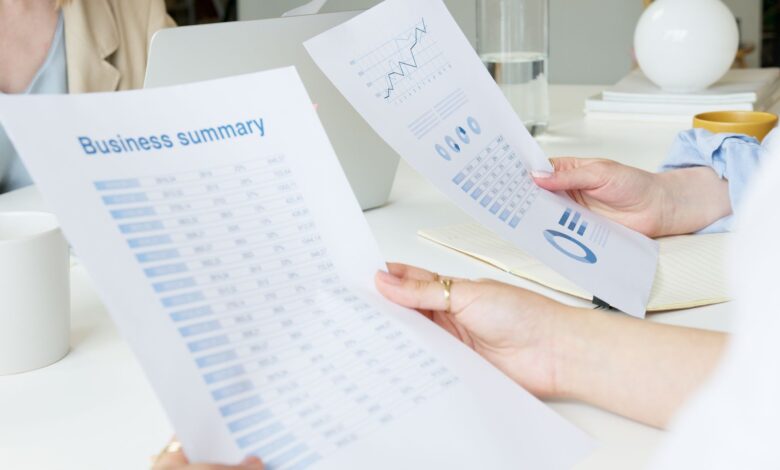
You have a ten-page report to get through before a meeting, and the summary an app gives you reads smoothly and confidently. The worry is what you can’t see: did it turn “roughly 5%” into “5%”, drop a “not”, or skip the page where the main warning sits?
A fluent summary is harder to catch than an obviously broken one. The way to judge any AI summarizer is to break its output into single claims and check each one against the source. That method is set out below, followed by a comparison of six tools you can use to chat with a PDF. The comparison covers how each tool reads your file, where the free tier stops, and what happens to a document after you upload it. Results depend on the document and the date, so every limit and policy here is stated as of September 2026.
Why AI Summarisers Change Facts and Drop Qualifiers
A summary is a set of choices about what to keep. When the tool writes new sentences instead of copying the original ones, the facts can shift as well as disappear. The errors that matter most are the ones that still read as correct.
The model predicts plausible text, not true text
IBM’s hallucination explainer says generative AI “does not know what is true or false” and that it optimises for plausibility rather than correctness. IBM also names a type that matters for document work. A “contextual hallucination” happens when a model is supposed to answer from a supplied document but falls back on its general training data instead. The same page says hallucinations “can be reduced but not fully eliminated.”
For a PDF summary, this means the dangerous sentence isn’t the absurd one. It’s the ordinary-sounding one that the document never said.
The five errors to look for
The error types below are a working checklist built from those mechanisms. They are not a published standard.
- Missing fact: something important in the source doesn’t appear in the summary. You can’t spot this without the source open.
- Lost qualifier: the fact survives but its hedge doesn’t. Words like “approximately”, “up to”, “estimated”, “in 2023 only” or “not including” disappear. For example, “revenue grew by approximately 5%” becoming “revenue grew by 5%” is a change of fact, not of style.
- Changed number: a figure is rounded, attached to the wrong item, or stated as exact when the source hedged it.
- Invented claim: a fact, figure or citation that appears nowhere in the source.
- Broken reasoning: each sentence looks right, but a cause becomes an effect, or a caveat on page 3 stops applying to the claim on page 7.
Long files make it worse
When a document is too long to process in one pass, it gets split into pieces. In an OpenAI developer forum thread, one developer who built a summariser wrote that common approaches “often lose out important details and arguments as well as chains of logic.” His fix was to summarise section by section, using the document’s table of contents. Google gives a similar warning about its own product: Gemini’s upload help page says an upload that’s too large may produce a response that “misses connections or details throughout the content.”
Not every wrong summary is the AI’s fault
Two other causes produce the same symptom. First, the PDF may never have been read properly. OpenAI’s file uploads FAQ says that outside ChatGPT Enterprise, ChatGPT pulls out the digital text and discards images. A scanned page is an image, so a summary of a scanned file may be built on almost nothing. Second, your instructions can force losses: asking for three bullet points on ten dense pages means something has to go. Each cause needs a different fix, which is why the test below separates them.
The 10-Page PDF Test: How We Measured Factual Consistency
The method adapts FActScore, a peer-reviewed evaluation that breaks generated text into “atomic facts” and calculates the percentage supported by a reliable source. Here the reliable source is the PDF itself, and the check runs in both directions. It asks what the summary claims that the document doesn’t support, and what the document says that the summary left out. That second direction is this article’s adaptation, not part of the original paper.
Choosing the document
The test document should be public and should contain selectable text. It should include what trips summarisers up:
- specific figures
- hedged claims
- at least one negation
- a caveat printed pages away from the claim it limits
Something like a published annual report or a public research brief works. Don’t use anything confidential. The privacy terms in the last section explain why.
Step 1: Build the claim list before running any tool. Go through the ten pages and write down each important claim as a single sentence, with its page number and its qualifier underlined. Doing this first stops a tool’s summary from shaping what you think the document said.
Step 2: Give every tool the same instruction. Use one plain prompt, such as “Summarise this document in about 300 words, keeping figures and conditions.” A fixed length keeps the comparison fair and makes forced omissions visible.
Step 3: Grade every summary sentence. Break each summary into single claims. Mark each claim Supported, Qualifier lost, Number changed or Unsupported. Then go back to your Step 1 list and mark anything the summary never covered as Missing.
Step 4: Record the conditions. Note the date, the plan tier (free or paid) and how many times you ran each tool. The same tool can answer differently on a second run, and vendors change their models without much notice. One run on one document measures that document on that day. It doesn’t settle which tool is best.
Claim-by-Claim Accuracy Comparison
The first table compares what each vendor documents about how its tool reads a PDF. Those are the conditions that decide which of the five errors you’re most likely to meet. It is not an accuracy ranking. That verdict comes only from grading output against your own source with the sheet further down.
| Tool | How it reads your PDF (vendor-documented) | Accuracy catch to watch |
|---|---|---|
| ChatGPT | Text-only retrieval outside Enterprise; images are discarded | Charts and scanned pages aren’t read |
| Claude | Text and visuals up to 100 pages; text only from 101 to 1,000 pages | Charts in long PDFs are skipped |
| Gemini app | Accepts up to 10 files; Google warns large uploads may miss details | Long files risk lost connections |
| Gemini Notebook (formerly NotebookLM) | Answers from your sources and says it won’t answer if the source lacks it | Copy-protected PDFs fail to import |
| Adobe Acrobat AI Assistant | Citations link to exact source locations | No image or complex-graphics support; prompts must be under 500 characters |
| ChatPDF | Citations and a side-by-side view; routes queries between GPT-4o and GPT-4o-mini | You don’t choose which model answers |
The pattern is that tools linking answers back to exact places in the document make Step 3 faster, because you can jump straight to the source. A citation shows where to look. It doesn’t prove the sentence is accurate. A summary can cite page 4 and still have lost the qualifier printed there.
The grading sheet
Copy this for each tool and fill in one row per claim.
| # | Source wording (page) | Summary wording | Grade |
|---|---|---|---|
| 1 | “…grew by approximately 5%” (p. 3) | “…grew by 5%” | Qualifier lost |
| 2 | “…not associated with…” (p. 6) | (absent) | Missing |
| 3 | — | “…a 2022 survey found…” | Unsupported |
The rows above are made-up examples of how to grade, not results from any tool.
Strengths, and a reason to skip each
- ChatGPT: it accepts large files, up to 512MB per file. Skip it for scanned or chart-heavy PDFs, because anything that isn’t digital text is discarded outside Enterprise.
- Claude: it reads charts and images in PDFs of up to 100 pages. Beyond that it reads text only, so a 300-page report’s figures won’t be analysed.
- Gemini app: it takes files up to 100MB. Google’s own warning about missed details on large uploads is a reason to break long documents into parts first.
- Gemini Notebook: it’s built to answer from your sources rather than general knowledge, which makes grading easier. It won’t import a copy-protected PDF.
- Adobe Acrobat AI Assistant: its citations point to exact locations. It only supports certain languages, and it doesn’t handle images or complex graphics.
- ChatPDF: you can start without an account. Its homepage doesn’t say whether uploads are used for model training, so read its policy before uploading anything sensitive.
Free-Tier Limits, File Caps, and Upload Privacy
Limits decide whether the tool reads your whole document. Privacy terms decide who else may see it. Both are the vendors’ own statements, as of September 2026, and both change without much warning.
| Tool | Free-tier or file cap | Training on your uploads (vendor’s statement) |
|---|---|---|
| ChatGPT | 512MB and 2M tokens per file; Free users get 3 uploads a day | May be used unless you turn off “Improve the model for everyone” |
| Claude | PDFs up to 1,000 pages | If you allow it, kept de-identified for up to 5 years |
| Gemini app | Up to 10 files per prompt; 100MB each for non-video files | Used for training, with human review, while Keep Activity is on |
| Gemini Notebook | 500,000 words or 200MB per source; no page limit | Not used to directly train foundational models unless you send feedback |
| Adobe Acrobat AI Assistant | Under 100MB, up to 600 pages, no password protection | Adobe states it never uses your documents to train AI models |
| ChatPDF | 2 documents a day on the free plan | Not addressed on its homepage, which describes encryption and deletion |
Prices aren’t listed because they change often. Check each vendor’s plan page before paying. Also note that Adobe sells AI Assistant Plus as an add-on to free and paid Acrobat individual plans.
The exceptions hidden in “opt out”
Turning training off isn’t always the end of it.
- OpenAI: after you opt out, a thumbs-up or thumbs-down rating can still send the whole conversation into training.
- Anthropic: it keeps feedback data for 5 years.
- Google (Gemini app): with Keep Activity off, chats are still kept for 72 hours, and chats already reviewed by humans are kept for up to three years even if you delete your activity.
- Google (Gemini Notebook): feedback, including any uploaded content that comes with it, is reviewed by trained teams.
Google’s own privacy notice says: “Please don’t enter confidential information that you wouldn’t want a reviewer to see.”
Before you upload anything
Step 1: Check the PDF has real text. Open it and use Ctrl+F (Cmd+F on a Mac) to search for a word you can see on the page. If nothing is found, the page is probably a scanned image, and a text-only tool such as ChatGPT outside Enterprise will discard it.
Step 2: Decide whether it should leave your device at all. Don’t upload contracts under a confidentiality agreement, patient files, payslips or unpublished work to a consumer account, whatever the settings say.
Step 3: Use the private mode. Use ChatGPT’s Temporary Chat, Claude’s Incognito chat or Gemini’s temporary chat. The vendors say none of these are used for training. Also avoid rating the answer.
Step 4: Check coverage afterwards. Ask the tool for a section-by-section outline of the file and compare it with the document’s real headings. An outline that stops early points to a cap or truncation, not just heavy compression.
The Quick Version
No summariser is accurate in general. Accuracy belongs to one tool, on one document, on one day, and only grading against the source tells you. The error most likely to slip past you is the lost qualifier, because the sentence still looks right. Before relying on any summary, check its three most important claims against the PDF, and read the vendor’s training settings before the file leaves your device.
Frequently Asked Questions
Why did the tool only summarise part of my PDF?
It may have hit a cap, failed to read scanned pages, or squeezed too much into a short summary. Ask it for a section-by-section outline and compare that with the document’s headings. That shows which of the three happened.
Will paying for a plan make summaries more accurate?
Paid plans raise upload limits: ChatGPT Free, for example, allows three uploads a day. Higher limits don’t stop lost qualifiers or invented claims, so keep grading summaries against the source whichever tier you use.
